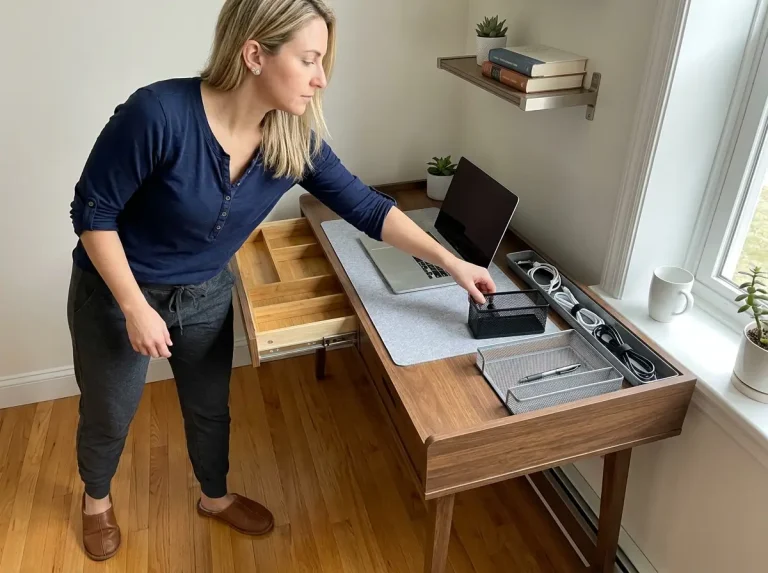

The first time you raise a standing desk to full height, you find out exactly which cables are too short. It usually happens mid-call, when the desk hits standing height, the monitor cable pulls taut, and then yanks clean out of the back of your laptop. The screen goes dark. Nobody warns you about this part — the desk arrives, you set it up beautifully at sitting height, and the very first rise undoes all of it.
After organizing a dozen home office setups — most of them in rentals, most of them on a budget — I’ve watched the same four mistakes repeat every single time. None of them are about which bin to buy. They’re about the one thing a standing desk does that a normal desk never will: it moves, twice a day, every day, for years.
These nine standing desk organization ideas fix the problems that general desk guides skip. We start with the cables, because on a height-adjustable desk the cables have to be solved before anything else earns a place on the surface. Then storage, the monitor, the mat, and the five-minute habit that keeps the whole thing from drifting back to chaos.
Quick Answer
Organizing a standing desk means solving for movement first and storage second. The order that works:
- Leave 2-3 feet of slack on every cable that reaches the wall.
- Mount the power strip under the desk so one cable descends.
- Clamp on storage and monitor arms — adhesive fails on moving desks.
- Keep your five most-used items in the front 10 inches.
- Add a terrain anti-fatigue mat, then route cables around it.
- Run a 5-minute reset at the end of every day.
Start With a Surface Edit — Before You Add Anything

Your standing desk surface is messier than a normal desk for a reason most people never name. A standing desk has two working positions, and almost nobody organizes for both. So the desk gets frozen at one height, the clutter builds, and instead of fixing it you grab your laptop and work from the couch. The desk becomes furniture you walk past.
Before you buy a single organizer, edit the surface down. This is the cheapest fix in the entire setup and it does more than any product. If you want the full sorting method — the three-pile approach to clearing a workspace — that lives in the full desk edit process. For a standing desk, the edit follows three specific rules.
The 5-Item Surface Rule
Keep five categories on the surface and nothing else: your screen, your keyboard, your mouse, one writing tool, and one drink. That’s the whole list. Everything else has to earn its spot or get stored under the desk, in a drawer, or off the desk entirely. The reason this matters more on a standing desk is simple — every extra object is one more thing that has to be reachable at two different heights, and most of them won’t be.
The trick that makes the rule stick is a physical boundary. Drop a desk pad or a small tray in the center of the work zone and treat its edges as the property line. If an item doesn’t fit inside the boundary, it doesn’t live on the desk. A boundary you can see is far easier to respect than a rule you have to remember, and this is the same 5-item surface rule that anchors a good desk organization system at any height.
To corral the small stuff — pens, paper clips, sticky notes, the three USB drives you can never find — one consolidating organizer beats five little holders scattered around. The SimpleHouseware Mesh Desk Organizer with Sliding Drawer pulls all of it into roughly a 12-by-9-inch footprint, and the sliding drawer hides the clutter while keeping it grabbable. If you’d rather have something warmer than black mesh, the Marbrasse Bamboo Expandable Drawer Organizer does the same job with a wood finish — just know bamboo dislikes humidity, so keep it out of a sunroom office.
Frequency Zones for Two Positions
Here’s the thing nobody tells you about a sit-stand desk: your reach zone shifts when you stand. The area where both hands work comfortably without leaning sits about 18 inches from your body, and it moves up and back by five to eight inches between sitting and standing. Items that felt perfect seated are suddenly behind your keyboard when you’re on your feet.
So zone the surface by position, not by category. Put your most-used items — keyboard, mouse, notebook, water — within the front 10 inches of the desk. That band stays reachable at both heights.
The center and back of the desk are comfortable seated and awkward standing, so anything that lives back there should be stuff you only touch occasionally. Get this wrong and you’ll feel it as the lean — that hunch over the keyboard you do at standing height to reach a notebook you parked too far back.
The One-Week Blank Desk Edit
Trying to predict what you actually use is a losing game. So don’t. Pull everything off the surface, work from a completely empty desk for one week, and only add back the items you physically reached for. It’s faster and far more accurate than guessing.
I tried this on my own setup after months of fighting clutter. By day three the desk held a keyboard, a mouse, one pen, and a mug — and I realized the wireless charger, the second notebook, and the little dish of paper clips had been sitting there for half a year without being touched once. They went in the drawer. The desk has stayed clear since. That’s the whole point of the edit: you stop organizing things you don’t use and start organizing the four things you do.
This is also where the two-heights problem shows up in real life. I organized a standing desk on a Saturday afternoon once, felt great about it, and by Tuesday realized I’d arranged everything for comfortable seated use. My notebook and water were 14 inches too far back the moment I stood up. The “organized” desk was fighting me at standing height. The blank-week edit catches that before it becomes a habit.
This article skips the general decluttering process on purpose — that ground is covered elsewhere. What matters here is that the edit comes first, because everything below assumes a surface that isn’t already buried.
Fix the Cables Before You Organize Anything Else
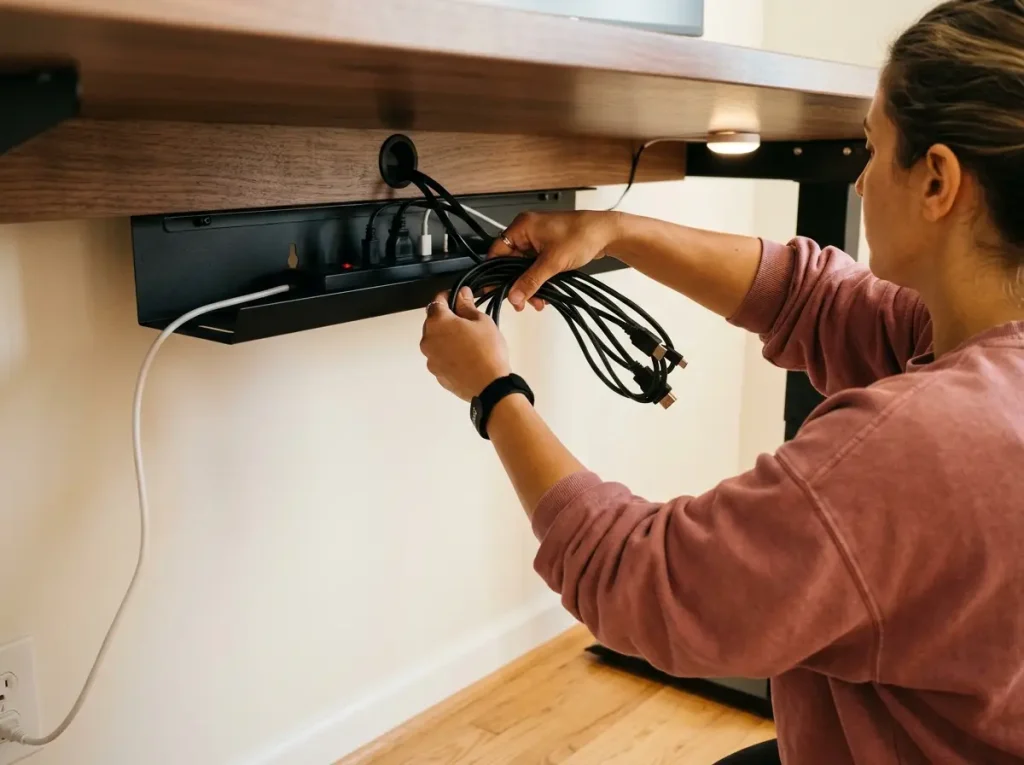
This is where a standing desk stops behaving like a normal desk. A cable setup built for a static desk fails on a moving one, because none of the routing was designed to travel. The cables get dragged through thousands of up-and-down cycles, work loose from their original paths, and end up worse than an ordinary desk’s — a tangle that’s visible the second you raise the desk. The community even has a name for it: cable spaghetti.
Solve cables first. Not because they’re the most satisfying part — they’re not — but because every other system you build depends on them being routed for movement. Get this wrong and you’ll be redoing your storage and your monitor mount six months from now when the cable pull finally damages a port.
The Service Loop — How Much Slack You Actually Need
A service loop is intentional extra cable, left coiled rather than pulled tight, built into the routing on purpose. It’s the single idea that separates a standing desk that lasts from one that slowly destroys its own connectors. And almost no one mentions it.
The math is straightforward. A typical sit-stand desk travels around 26 inches, from roughly 24 inches at sitting height to about 50 inches standing. Any cable that runs from a desk device to the wall has to cover that full travel without going taut at the top — so it needs two to three feet of slack.
On top of that, leave a smaller loop of 8 to 12 inches at each device connection point. That device loop absorbs the movement right where the cable meets the port, which is exactly where damage happens.
People pull cables tight because tight looks tidy. That’s the mistake. A cable pulled straight at sitting height has nowhere to go when the desk rises, so the tension transfers straight to the connector — the HDMI head, the USB-C port, the spot where the laptop charger plugs in.
Over months, that slow strain loosens the port from the inside, and one ordinary morning the cable pulls free mid-use. Cable tension working against your equipment is the kind of slow failure that OSHA’s ergonomic positioning standards are built to help you avoid at the workstation level.
The test takes 30 seconds. Once everything’s routed, raise the desk slowly to full height and watch every cable. Nothing should pull, bind, or press against the lifting column. If any cable goes dead straight with no slack left, that’s your weak point — add length or re-route before it becomes a dark screen.
Run the raise-and-watch test with the lights low and a phone flashlight aimed at the cables. Movement and tension are far easier to spot as shadows and shine than in flat overhead light — you’ll catch the one cable that’s about to pull before it ever does.
Mount the Power Strip to the Desk (The One Change That Fixes Everything)
If you do only one thing in this entire article, do this: mount the power strip to the underside of the desk. Every device plugs into the strip at desk height, the strip travels with the desk, and only a single cable — the strip’s own cord — has to reach the wall. That one change eliminates most of the cable chaos before you’ve bought anything else.
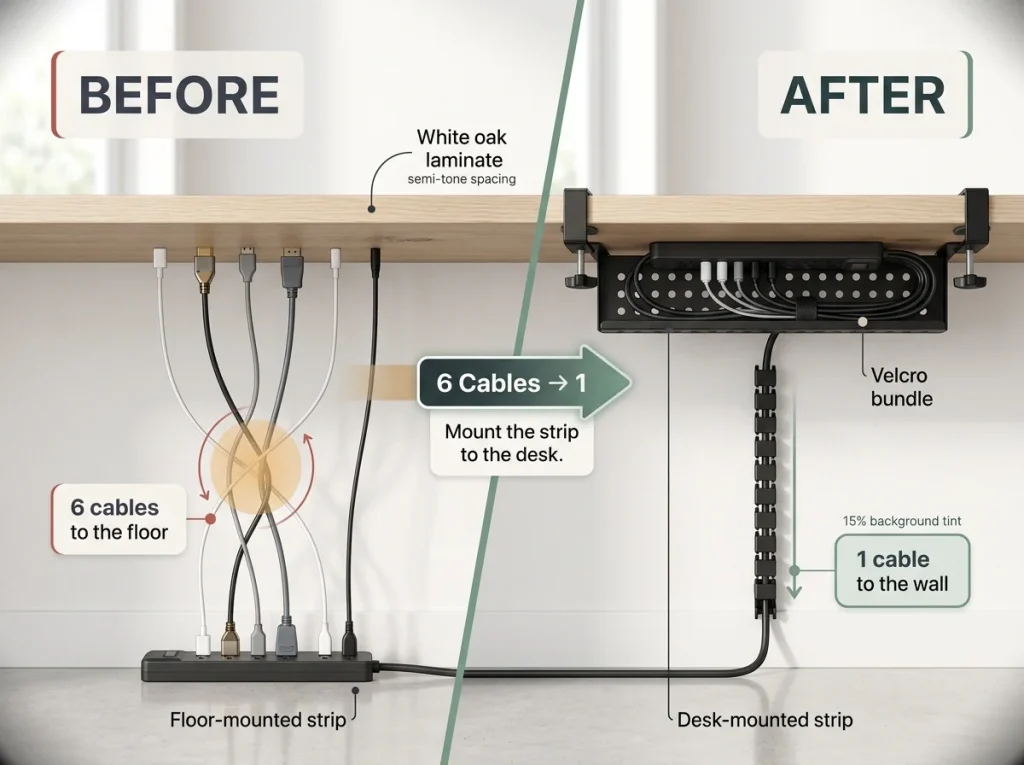
Think about what the floor-mounted strip actually does on a moving desk. Every height change tugs on all six device cables at once, because they’re anchored to the floor while the devices ride up. After months of that, the connector heads start to fray — USB-C and DisplayPort go first. Mount the strip to the desk and that tug disappears completely; the devices and their power source now move together.
The mount itself can be an under-desk tray. The Cinati 16-inch Cable Management Tray clamps on with C-clamps and needs no drilling, which keeps it renter-safe, and it holds a standard power strip plus the horizontal cable runs in one channel. If your desk is wider and you need a longer span, the No Drill Extendable Cable Tray stretches from 16 to 31 inches.
And if you want this for free, the budget version is real: zip-tie the strip straight to the underside through the desk’s grommet holes. It’s less tidy and grommet access varies by desk, but it achieves the same effect — strip on the desk, one cable down.
Cable Spine vs. Cable Tray — Which One You Actually Need
A tray and a spine solve different halves of the same problem, and most standing desks need both. The tray handles the horizontal cables under the surface — if you want to compare tray styles in depth, the sibling guide to cable management solutions tests several at a static desk, and this is the standing-desk version that adds the slack and spine layers on top. The spine handles the vertical run — the section that travels from the desk down to the floor, the part that actually changes length when the desk moves.
I used to run a stationary tray and call the job done. After watching the vertical cables go taut every time I raised the desk, I added a spine for the leg run, and the difference was immediate. A cable spine is a vertebrae-style chain whose links pivot as the desk rises, keeping the bundle pressed to the leg without ever pulling tight. If your desk has more than about 15 inches of height range, you want one.
The DeskLogics Cable Management Spine clamps on to desks 0.4 to 2 inches thick, with silicone pads so it won’t mark the surface — and it flexes through the full travel instead of fighting it. For a shorter height range, a simpler JOTO Cable Management Sleeve bundles the cables vertically, though it doesn’t flex the way the spine does, so it suits ranges under about a foot.
Whatever holds your bundles together, make it velcro, not zip ties. VELCRO Brand ONE-WRAP ties are reusable, they re-open in a second when you add a device, and they won’t compress cable insulation the way an over-tightened zip tie does. On a desk you’ll be re-routing more often than a static one, that reusability matters — the VELCRO ONE-WRAP 100-Pack handles an entire setup with plenty left over. Dollar-store velcro works fine for light single-cable bundles, for what it’s worth; the name-brand just holds longer on the heavy multi-cable runs.
Under-Desk Storage That Doesn’t Fall Off

Most people learn this rule the hard way — usually when the adhesive drawer hits them in the leg at the end of its four-month life. Adhesive mounting was designed for furniture that stays still. A height-adjustable desk introduces a kind of stress that adhesive chemistry simply can’t survive, and no amount of “industrial-strength” branding changes that.
Why Your Adhesive Drawer Keeps Falling Off
Every time the desk moves, it creates a small twisting force — torque — at the adhesive bond. Assume you adjust the desk twice a day. That’s 180 to 360 torque cycles over three to six months, each one working the bond a little looser. This isn’t a defective product. Adhesive just isn’t rated for repeated mechanical stress, and a moving desk is nothing but repeated mechanical stress.
Adhesive under-desk drawers get recommended everywhere, and they do work — on a desk that never moves. The day mine failed, I was on a video call and the whole drawer let go and dropped its contents on my foot. I’d had it maybe four months. The replacement clamps on, and it hasn’t budged since. Once you’ve heard a fully loaded drawer come off a desk at 2 p.m., you don’t go back to adhesive.
The Clamp-On Drawer System
A clamp-on mount is a steel C-clamp that tightens mechanically onto the desk edge. No chemistry, nothing to degrade — the clamp holds by friction, so desk movement does nothing to its grip. The Stand Steady Clamp-On Desk Drawer is the largest no-drill drawer I’ve found with real depth, at 31.5 inches long and a full 12 inches deep, with six compartments that stop the everything-in-one-pile problem. It installs with thumb screws — no tools — and it fits desk edges up to 1.3 inches thick, so measure your edge before ordering.
Store the right things in it. The clamp-on drawer is for items you reach for occasionally but don’t want on the surface: spare charging cables, a backup notebook, headphone adapters, loose stationery. It is not rated for books or heavy files — load it with weight and you’re putting that twisting force back on the clamp. If you only need to stash headphones and small accessories, a smaller round swivel-style clamp drawer costs less and works fine; you’re just trading capacity for the lower price.
Before you buy any clamp-on anything, measure your desktop thickness at the edge with calipers or a ruler, not by eye. Bamboo and solid-core tops often run thicker than the spec sheet, and a clamp that’s a quarter-inch short won’t close. This is the one measurement that determines whether the whole system works.
Building the Full Under-Desk Zone
The under-desk space works as a system of three parts, not a pile of separate products. Once you see how they fit together, the whole zone goes from a tangle to something you actually use.
Install in order. The tray goes first, at the back underside, holding the power strip and the horizontal cable runs. The spine goes second, clamped to the leg, taking the vertical cable travel down to the floor. The drawer goes last, at the front edge where it’s easy to reach.
Built this way, the three pieces never compete for the same space — the cables stay at the back and side, the storage stays at the front, and nothing crosses the lifting columns. If you want to compare specific organizers for the surface side of things, the roundup of best desk organizers covers the above-desk options this section deliberately leaves out.
The Monitor Setup That Works at Two Heights
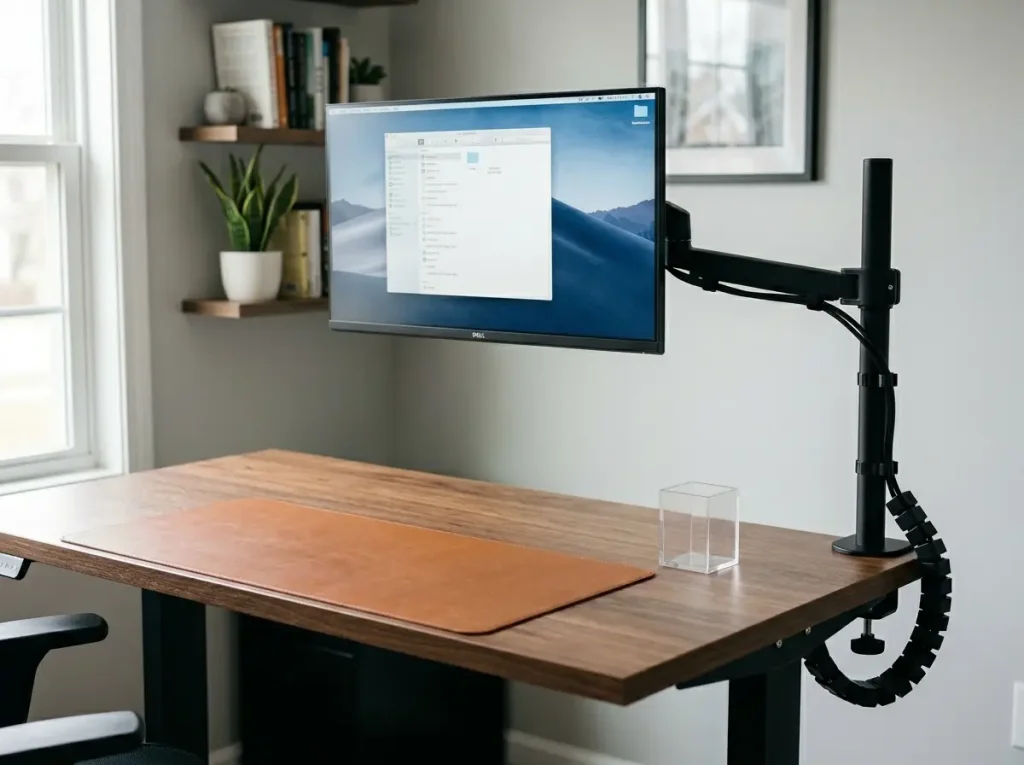
You set the monitor at the right height for sitting and assume standing will be close enough. It isn’t, and the reason is geometry. When you raise the desk, the surface climbs about 10 inches — but your eye level, relative to that surface, drops by a similar amount because you’ve gone from seated to standing.
The two changes stack. The net result is a screen aimed at your chin.
Why a Monitor Riser Doesn’t Work at Both Heights
A monitor riser adds a fixed height above the desk surface. When the desk goes up, the riser goes up with it — there’s no independent adjustment.
Picture the numbers: the desk rises 12 inches, the riser already adds 4, so the top of your screen is now 16 inches higher than it was, while your eyes only climbed about 12. The screen ends up too high, and you either crane your neck or stop using standing mode. A riser that’s perfect seated becomes the reason you sit back down.
How a Monitor Arm Changes Your Desk Footprint
A monitor arm fixes the geometry by separating the screen’s height from the desk’s. The arm clamps to the desk edge and holds the monitor out over the surface; when you raise the desk, you nudge the arm down a touch and the screen stays put relative to your eyes. The screen position you set once at the OSHA computer workstation guidelines for monitor height — top at or just below eye level — actually holds at both heights instead of only one.
The second payoff is desk space. A monitor and its base occupy roughly a 24-by-8-inch rectangle of surface — typically the single largest footprint on the whole desk. Lift the screen onto an arm and that entire rectangle opens up.
The center of the desk, which used to be dead space behind the monitor stand, becomes usable. This is the kind of newly freed real estate worth planning for, and the guide to how to style the space around your monitor goes deep on what to do with it.
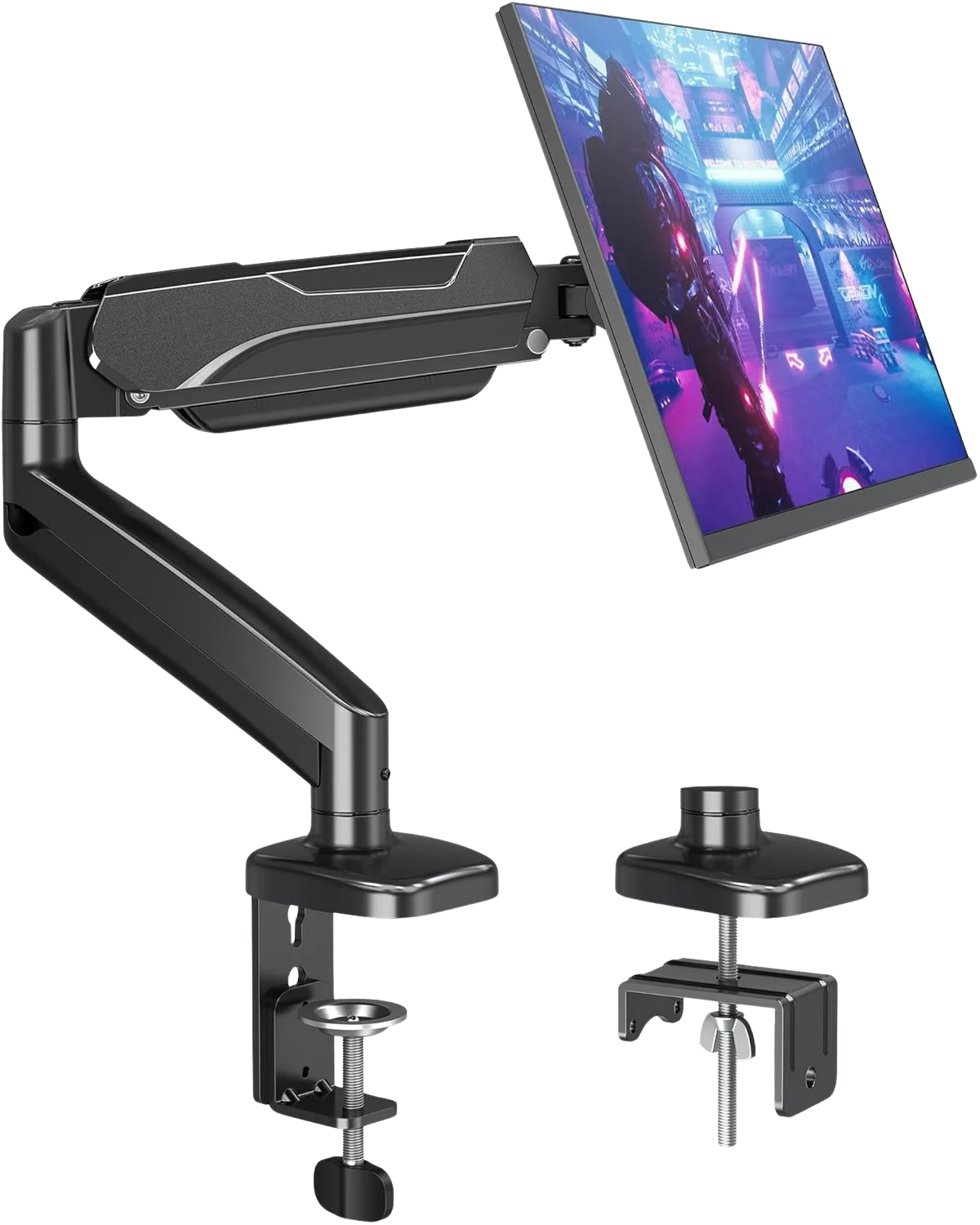
If an arm isn’t in the budget right now, a riser with a storage drawer still helps — you’ll just have to re-position the screen by hand when you switch heights. The WALI Metal Mesh Monitor Riser with Drawer is a reasonable middle step that frees part of the surface and costs far less than an arm.
Clamp vs. Grommet — The Renter’s Decision
If you rent, the decision is already made: always clamp. The C-clamp grips the desk edge and leaves no holes in the desk and none in the wall. The grommet option requires drilling a hole through the desktop, which is a deposit problem and a permanent one. The MOUNTUP clamp fits desk edges from 0.39 to 4.53 inches thick, which covers nearly any desk you’ll meet. Go grommet only if you own the desk and want the slightly cleaner look of the post coming straight up through the surface.
The Standing Mat and the Cable Problem It Creates
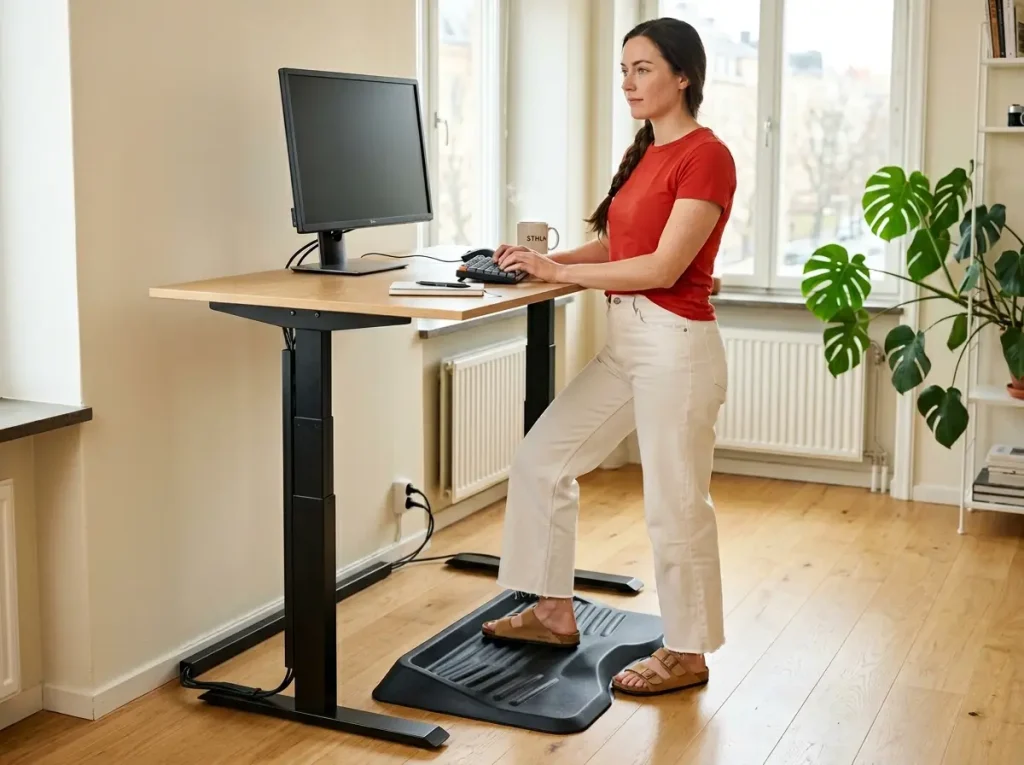
People buy a standing mat, drop it in front of the desk, and never think about it again. But the mat is 26 to 29 inches deep, and it sits in exactly the floor space where your desk’s cables come down from the leg. Route the cables without accounting for the mat and you’ve built either a trip hazard or a slow cable-crushing problem. This one’s almost never mentioned anywhere, because you only discover it after you own both the mat and the desk.
Flat Mat vs. Terrain Mat — Which One Actually Reduces Fatigue
A flat foam mat cushions your feet from a hard floor. That’s it. A terrain mat does something different — its raised contours drive small involuntary movements: weight shifts, heel raises, a little toe engagement. That micro-movement, not the cushioning, is the mechanism that actually reduces standing fatigue, and it’s the reason terrain mats outperform flat foam on sessions longer than a couple of hours.
The Ergodriven Topo Anti-Fatigue Mat builds in a central ridge, a front slope, and a heel pocket, all in PVC-free polyurethane. The terrain is the point. A flat mat at a fraction of the price is genuinely fine if you stand less than two hours a day total — above that, the contoured surface earns the difference.
Sizing the Mat for Your Floor Space
The full Topo runs 29 inches wide by 26.25 inches deep, which is a real chunk of floor. The Mini drops to about 25 by 19 inches and fits tighter offices better. Either way, you want at least 30 inches of clear floor in front of the desk so the mat isn’t crammed against your chair when you sit. In a small office where every inch is already spoken for, factor the mat into the layout the same way you’d plan any vertical storage for tight spaces — as a fixed footprint you design around, not an afterthought you wedge in later.
Cable Routing Around (Not Under) the Mat
Your desk’s cables run down the leg and land on the floor — right where the mat sits. You’ve got three options, and only two are good. First, route the cables along the inside of the desk legs, away from the mat’s footprint. Second, use a cable spine to keep the run vertical and pressed against the frame, so it lands behind the mat rather than under it. Third — the one to avoid — tuck the cables under the mat edge, which slowly crushes the insulation every time you shift your weight onto that spot.
I found this out the slow way. I’d routed a charging cable under the front edge of a mat, and after a couple of months the cable had a flattened, slightly warm section right where my heel landed all day. Caught it before it failed, re-routed it down the inside of the leg, and the spine from the cable section earlier does this job almost automatically — it lands the bundle behind the mat with no thought required. Route around the mat, never through it.
The Topo has a toe indentation you can hook with one foot — kick the mat back under the desk when you sit, pull it forward when you stand. Use it. A mat that lives permanently in front of the desk becomes an obstacle the moment you’re seated, and that small friction is what makes people stop standing.
The 5-Minute Reset That Survives Both Heights

Every desk system needs a maintenance habit, but standing desks have one specific failure mode: the desk gets frozen at a single height for weeks, the surface gets organized for only that height, and standing quietly falls out of your routine. The reset that prevents it has to include a height check, not just a surface tidy. Start from the seed cluster’s daily desk reset system and add the standing-desk piece on top.
The End-of-Day 5-Minute Scan
Five minutes, four checks, same order every evening. Clear the surface back to its zones. Glance at the cables and confirm nothing’s pulling. Close the clamp-on drawer — left half-open, it becomes a shelf and things fall in. Drop the desk back to sitting height, because most people start the next morning seated, and a desk that greets you at the right height is a desk you’ll actually keep using.

The Height-Switch 30-Second Check
Every time you change height, spend 30 seconds confirming your most-used items are still in the front zone, within reach at the new position. Anything that’s now awkward gets nudged forward immediately. This is the habit that stops desk drift — the slow migration of items away from their spots that builds over weeks until the desk is a mess again.
Build the check into the act of pressing the height button; the two happen at the same moment, so it costs you nothing. It’s the same 5-item surface rule applied at the moment of transition instead of once a week.
Quarterly Cable Audit
Every three months, raise the desk fully and run the cable check again. You’re looking for cables that have lost their slack — pulled taut by a new device, a swapped monitor, or a bundle that got rearranged. Add length or re-route wherever a cable now goes straight at full height.
Velcro makes this a 15-minute job: undo the tie, fix the run, redo the tie. And if you’ve added or removed a device since the last audit, that’s the trigger to redo the cable setup properly rather than patch it — patching is how cable spaghetti grows back.
Start With the Cables, Then Everything Else
A standing desk rewards the person who organizes for movement instead of for the photo. Three things carry most of the result.
First, fix the cables before anything else. Every other system depends on cables routed for travel — the service loop, the power strip mounted under the desk, the spine or tray along the leg. Cables first, organizers second, every time.
Second, clamp on everything. Adhesive fails on a height-adjustable desk within months, so if a storage piece or a monitor mount doesn’t grip the desk edge or screw into the underside, it doesn’t belong on a standing desk.
Third, organize for both heights. The front 10-inch zone works sitting and standing; the back of the desk only works sitting. Decide every item’s spot by one question: can I reach this standing?
In three months, raise the desk to full standing height and watch every cable. If any cable goes taut, new devices or rearranged bundles have pulled your service loops out of position — add slack and re-route before it becomes a port problem. Then start where it counts: route your cables before you touch a single organizer. A standing desk with clean cables and no organizers beats a standing desk with beautiful organizers and cable spaghetti underneath, every single time.
Frequently Asked Questions
01What do I need for a standing desk setup?
At minimum: a monitor arm that adjusts with height, a cable tray that holds the power strip under the desk, and 2-3 feet of slack on every cable running to the wall. Add a clamp-on drawer for under-desk storage and a terrain mat for standing sessions.
02How do I manage cables on a sit-stand desk?
Three steps. Mount the power strip under the desk in a tray so only one cable reaches the wall. Leave 2-3 feet of slack on every cable that travels from desk to wall. Then run a cable spine along the leg to keep the vertical cables bundled and flexible as the desk moves.
03Do you need a drawer for a standing desk?
Not essential, but useful. A clamp-on under-desk drawer keeps the surface clear of non-essential items — use clamp-on, not adhesive, since adhesive fails on a moving desk. The key is filling it with occasionally-needed items, not treating it as a second surface.
04How can I keep my desk organized while standing?
Keep your most-used items within 10 inches of the front edge. That zone stays reachable at both sitting and standing height. Items at the center or back are comfortable seated but force you to lean over the keyboard while standing, which leads to desk drift.
Disclaimer: ClutterlessNest is a participant in the Amazon Services LLC Associates Program. As an Amazon Associate we earn from qualifying purchases. This article may contain affiliate links — if you buy through them, we may earn a small commission at no extra cost to you. We only recommend products we have tested or genuinely believe in.