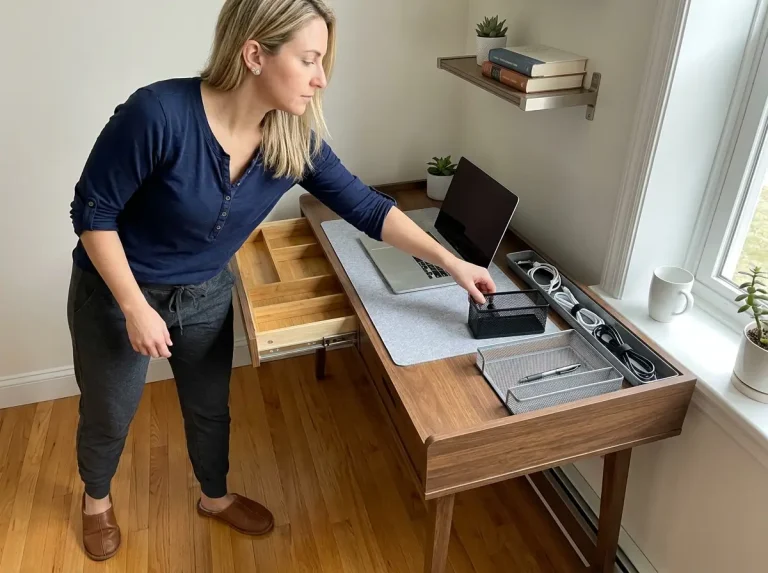

Your desk looks organized on Monday. Then you get a USB hub on Wednesday, the monitor cable needs rerouting, and by Friday it’s cable spaghetti again behind the desk. I’ve set up cable management on three different desks now, including one standing desk that fought me every step, and the thing nobody tells you is that the products are the easy part. The hard part is building a system that doesn’t fall apart the second you add a new device. Here are the five solutions that actually held up, in the order you should tackle them, starting with the one that costs nothing.
Quick Answer
Five solutions, layered in this order, give you a desk that stays neat:
- Audit and remove dead cables first (free)
- Mount a clamp-on under-desk tray for the power strip
- Bundle cables with Velcro ties, not zip ties
- Route each cable along a clear path with clips
- Run a five-minute monthly sweep to catch cable creep
Start With the Cables You Don’t Need

Everyone’s first instinct is to go buy a cable tray. I get it. Buying a product feels like progress. But the desk I reorganized last fall had eleven cables plugged in, and when I actually traced each one back to its device, four of them led nowhere useful. One was a charger for a phone I’d recycled a year earlier. Another was a USB hub from a laptop I no longer owned. Unplugging those four didn’t require a single dollar. It required ten minutes and a willingness to admit they weren’t coming back.
This is the step every competitor skips. They assume every cable on your desk earns its place, then sell you organizers to manage the mess. The truth is that a typical desk carries three to five dead cables at any given time, and removing them cuts your visible cable count by roughly 30 to 40 percent before you’ve spent anything. It’s the same audit-first logic I lean on for the desk edit process — clear the dead weight before you build the system.
How to Audit Your Desk Cables in 10 Minutes
Unplug everything from your power strip. All of it. Then plug back in only what you actually use today, one device at a time. The kettle of cables left lying loose after that is your real project, and it’s almost always smaller than you expected.
Snap a quick photo of your cables before you unplug anything. When you’re putting devices back, the photo tells you which cable went where so you’re not playing the “what does this one do” guessing game at the power strip.
What Counts as a Dead Cable
A cable is dead if you can’t name the device it serves without guessing. The phone charger for a phone you traded in. The ethernet cable you stopped using when the router moved. That second extension cord quietly duplicating the job your power strip already does. These aren’t cables you’re using occasionally. They’re cables you forgot were there.
What to Do With the Cables You Remove
Keep one spare charger per device type in a labeled zipper bag in a drawer. One. Everything else goes to an e-waste bin, a donation box (phone chargers especially get snapped up), or Marketplace if it’s a brand-name brick worth something. Keeping cables “just in case” is exactly how they migrate back onto the desk six months later. And honestly, you will not miss the eighth micro-USB cable.
Under-Desk Cable Trays Are the Foundation
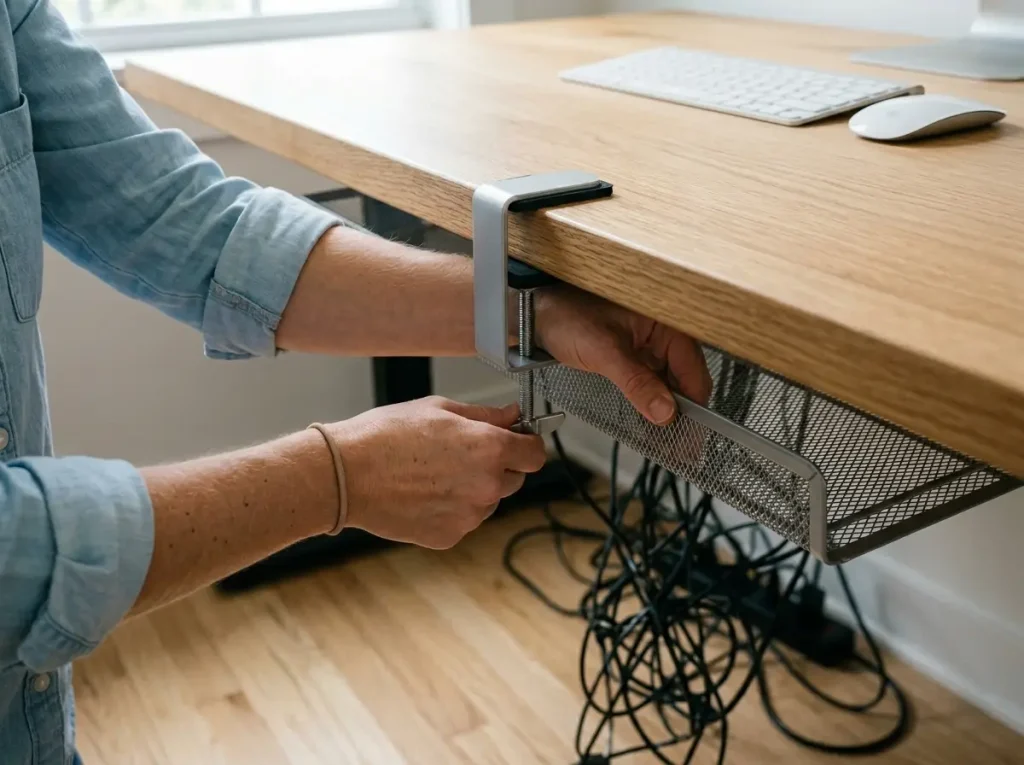
The first cable management product I ever bought was a pack of adhesive clips. They did almost nothing for the actual problem, which was the power strip and several feet of slack cable pooling on the floor under my desk — the wire graveyard, as one person on a home office forum called it. The clips organized the cables I could see while ignoring the pile I couldn’t. The fix was the under-desk cable tray, and it remains the single product that makes the biggest visual difference.
Here’s the mental shift: the tray doesn’t manage cables. It hides infrastructure. Your power strip goes in the tray. Your excess cable length coils inside the tray. Everything then feeds cleanly up to the desk surface from one hidden spot instead of sprawling across the floor. It’s the foundation the full desk organization system sits on, and once it’s in, the rest of the cables suddenly have somewhere to go.
A quick demonstration is worth more than my describing the routing in text, so if you want to see the whole sequence run start to finish, this walkthrough covers it well.
Clamp-Mount vs. Screw-Mount vs. Adhesive-Only
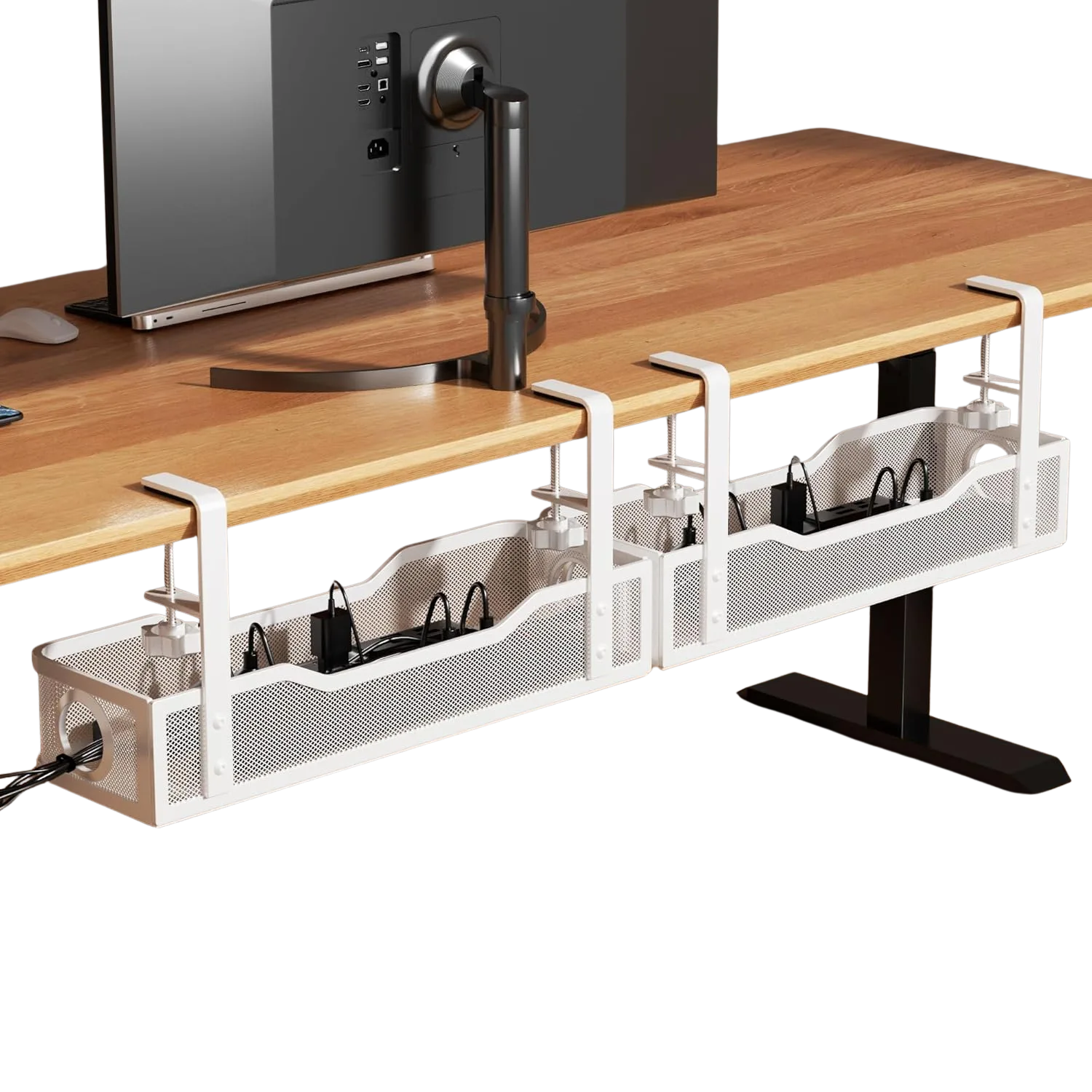
There are three ways a tray attaches, and the difference matters more than which brand you pick. Clamp-mount trays squeeze the desk edge with no surface contact at all, which makes them fully reversible and the right call for renters. Screw-mount trays give you the strongest hold but require drilling into the desk, so they suit owned desks and standing desks that vibrate. Adhesive-only trays are the weak link. I used to recommend them for simplicity, but after watching one slowly peel off under the weight of a loaded power strip and crash at 2am, I switched to telling people to skip them for anything heavier than a couple of charging cables.
For most people, this is the one worth buying.
If a tray isn’t in the budget this week, a cardboard shoebox with a couple of holes cut in the sides, set under the desk to hold the power strip, does the same job until you upgrade. It’s not pretty, but nobody’s looking under there anyway.
Measure Your Desk Before You Order
The measurement everyone forgets is desk edge thickness. Flip the desk on its side, or just look at the edge, and put a ruler against it. Most clamp trays fail in exactly two situations: desks thicker than three inches (rare, usually a heavy wood slab) or thinner than four-tenths of an inch (also rare, usually glass or thin plywood). A standard IKEA Linnmon top runs about an inch and a third, well inside range. Five seconds with a ruler saves you a return.
How to Load the Tray Correctly
Power strip goes in first, outlets facing toward the center of the desk so the cords don’t have to fight a U-turn. Coil the excess cable length neatly inside the basket — nothing should hang below the tray edge, or you’ve just moved the spaghetti six inches lower. Keep heavy power bricks toward the outer side of the tray so the weight sits stable instead of tipping the whole thing forward.
Bundle Your Cables Before You Route Them
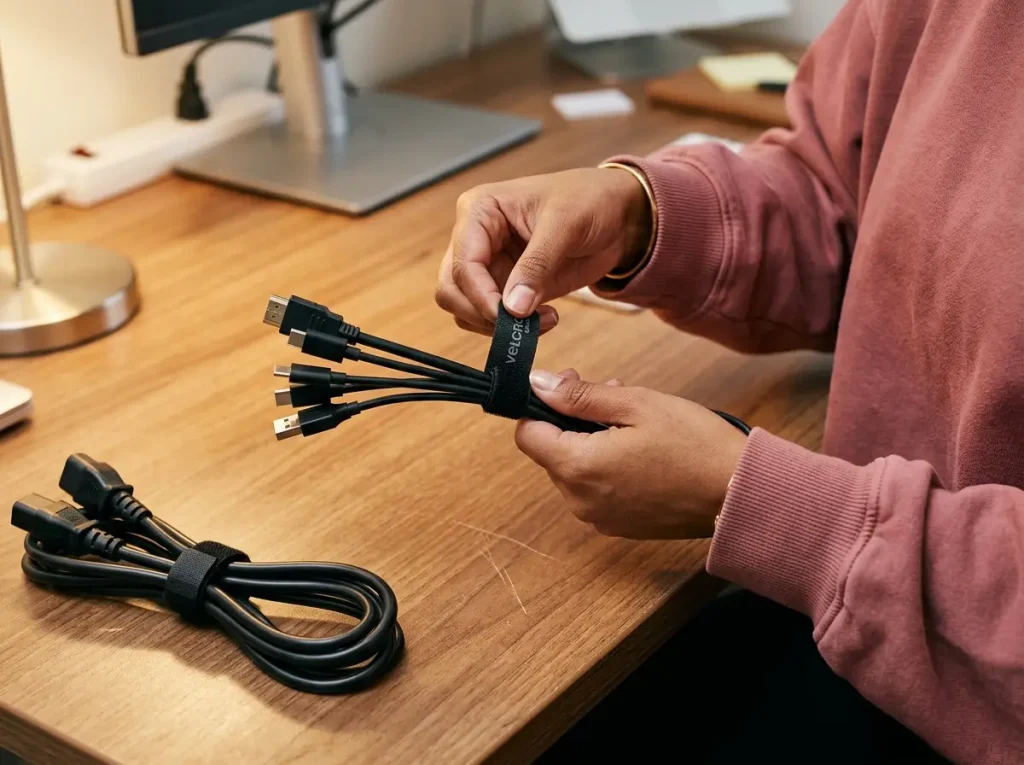
I used to run every cable separately along the back of my desk, each one clipped on its own. Looked sharp for about a week. Then they drifted out of the clips and tangled into each other, and I was back to a rat’s nest behind the monitor. The fix was bundling the cables first — grouping them logically — so I had two tidy bundles to manage instead of eight loose cables doing their own thing.
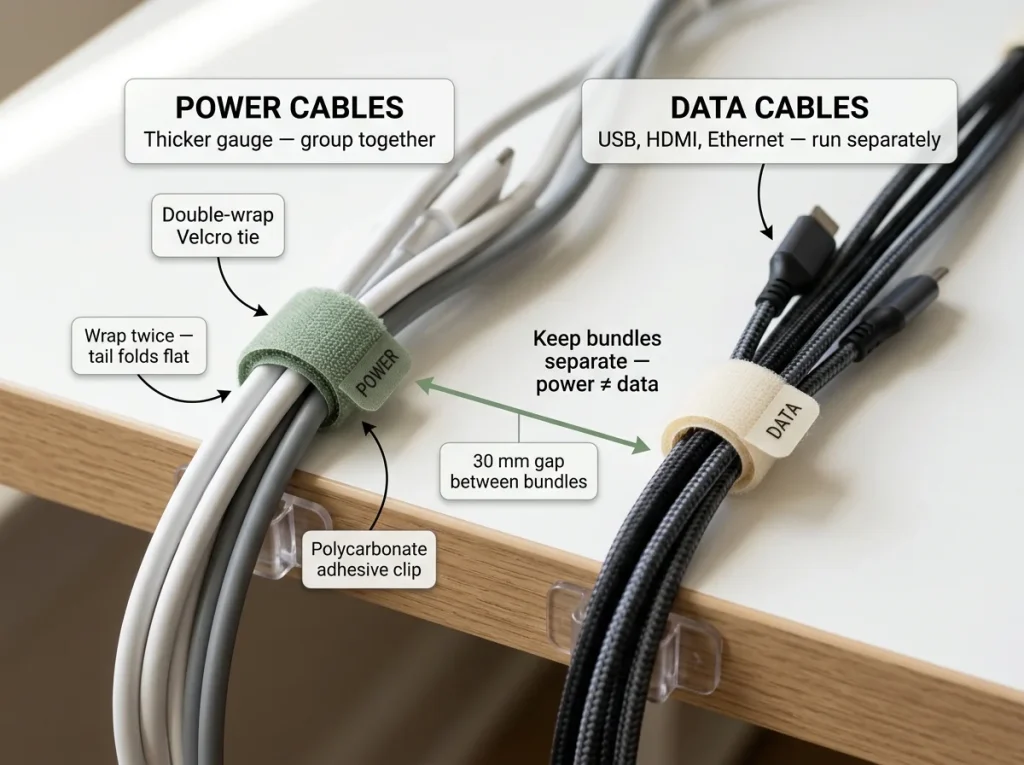
The rule that changed everything: separate power from data. Power cables (monitor cord, laptop brick, lamp) go in one bundle. Data cables (USB, HDMI, ethernet, audio) go in another. They run different paths and flex differently, and keeping them apart means you can grab one cable later without dragging the whole group along with it. This is the same two-bundle approach that keeps TV setups from reverting to chaos, and it works at a desk for the same reason.
Why Velcro Beats Zip Ties Every Time
For bundling, reach for Velcro, not zip ties. The VELCRO Brand ONE-WRAP Cable Ties, an 8-inch reusable tie that sticks to itself without a separate strap, are the ones I keep a 100-pack of in the drawer because that pack lasts for years. The fabric is soft enough that it physically can’t crush cable insulation, even if you wrap it tight. Nylon zip ties can constrict and crack the insulation under sustained heat above 55°C, according to cable management testing, and that’s before you factor in the real annoyance: every time you add a device, you need scissors to cut the old tie and a new tie to replace it. With Velcro you unwrap, add the cable, wrap again. If you’ve already got a reusable Velcro strip lying around from some other product, cut it into thirds — same thing, free.
The Two-Bundle Rule
Keep the bundles physically separate as they travel. Power typically routes straight down to the tray; data runs along the back edge toward the ports. Mixing them is how you end up unplugging your monitor when you only meant to swap a USB stick.
Cable Sleeves for the Floor-to-Desk Run
For the visible cable run from the desk down to the floor or wall outlet, a sleeve pulls everything into one clean line. The trick is getting one that won’t trap you. The JOTO Cable Management Sleeve, a split-design wrap that opens along a seam, lets you add or remove a cable without disassembling the whole thing. Standard sewn-tube sleeves force you to unthread every cable to add one — which, well, is the exact problem that makes people give up on sleeves in the first place. Thread it, zip the split closed, done. Next month when you add a cable, unzip an inch and slot it in.
Leave at least two empty slots in every sleeve and wrap your Velcro ties loosely. A bundle packed to capacity is a bundle you have to tear apart the next time you buy a device. Slack is what lets the system absorb change instead of breaking.
Route the Cables Along a Clear Path
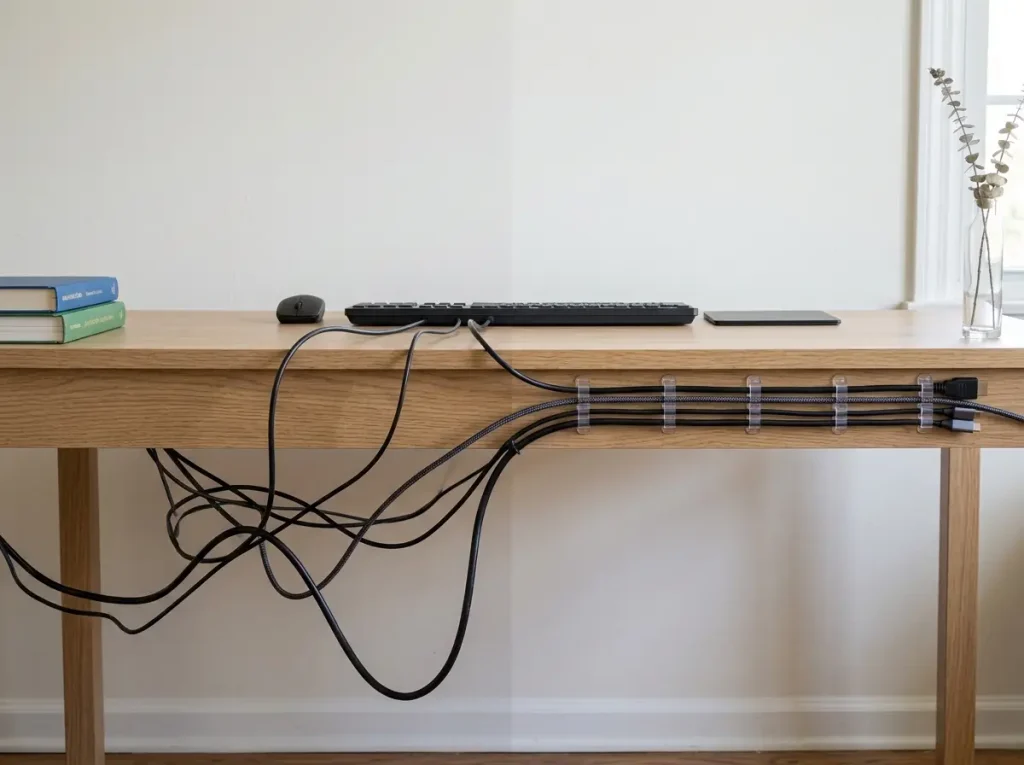
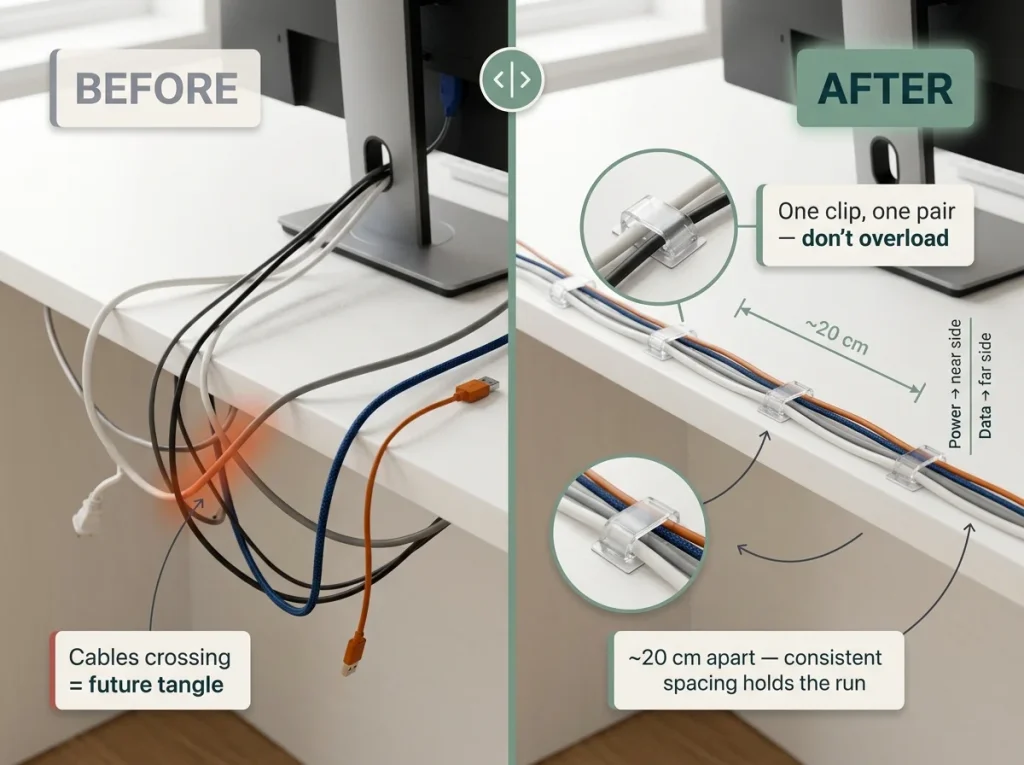
Bundling keeps cables together. Routing keeps the bundles in place. Skip this step and a bundle you tied neatly behind the monitor will slide to the desk edge by the end of the day — same chaos, just consolidated into one pile instead of several. Routing is what turns a one-time cleanup into something that holds.
Adhesive Cable Clips for the Desk Surface
Along the back edge of the desk, adhesive clips lock each cable into its lane. The Command Cord Clips in clear are my pick because they basically vanish against wood, white, or laminate, and the 3M stretch-release backing peels off without residue when you move out — genuinely deposit-safe if you pull the tab instead of yanking. Stick three of them along the back edge, one cable per clip, spaced about a hand-width apart. Don’t try to thread two cables through one clip; they’ll work loose. One clip, one cable. The budget version is a binder clip on the desk edge with the cable looped through the handle — looks a little DIY, costs nothing.
J-Channel Raceways for the Desk Leg and Wall
To get cables from desk height down to the floor cleanly, a J-channel raceway does the work. It’s a small plastic channel, open on one side, that mounts flat to the desk leg or wall and snaps shut over the cables. The Delamu J-Channel Cable Raceway, a paintable 4-pack totaling about 63 inches, covers most single desk-to-wall runs and takes a coat of wall paint so it disappears against the baseboard. For renters, the adhesive can leave residue, so lay down a strip of painter’s tape first and mount the raceway on the tape — the tape takes the residue, the wall stays clean. The same J-channel trick is what I use for hiding TV cables without drilling, so if you’ve got a wall-mounted TV with the same problem, one product solves both.
One thing to never do: run cables under an area rug to hide them. It feels clever and it’s a real hazard. Covered cords can’t shed heat, which is why the CPSC recommends keeping cords away from rugs and carpeting. Route along walls and baseboards instead.
Standing Desk Extra: The Cable Spine
Standing desks add a wrinkle. When the desk rises, the cables need extra length to follow, and that slack has to live somewhere when the desk drops back down. A cable spine — a flexible accordion track that mounts to the desk frame and folds as the desk moves — houses that loop. Without one, cables bunch at sitting height and pull taut at standing height, and pulling a cable out of your monitor mid-morning gets old fast. The non-negotiable rule for any standing desk: mount everything to the frame, never the wall. Frame-mounted gear travels with the desk. Wall-mounted gear stays put and stretches your cables until something gives.
Why Cable Management Always Reverts (and the Monthly Fix)

Every cable guide acts like you organize once and it stays that way. You won’t. I didn’t, not the first two times. Cables multiply because you keep adding devices, and systems break because adding one cable means undoing the whole bundle to thread it in. The reason this keeps happening isn’t that you’re disorganized. It’s that you built a perfect system for the desk you had, not the desk you were going to have a month later.
The Spaghetti Reset Problem
Here’s the failure mode in slow motion. You spend two hours on a beautiful setup. Tuesday you buy a second monitor. The new monitor cable is too thick for the sleeve, or there’s no slot left, so you’d have to pull the whole bundle apart to add it. Almost nobody does the teardown. Instead the cable gets tucked in wherever it fits, then the next one, then the next, and within a few weeks you’ve got the spaghetti reset — the inside of the bundle still tidy, the outside a growing mess. That’s cable creep, and it’s what quietly wrecks every cable system.
The New Device Rule
Every time a new device lands on the desk, route its cable into the nearest existing bundle before you plug it in. Two minutes, done right, at the moment it arrives. This single habit is the difference between a system that lasts and one you redo every quarter. Skip it and the bundle grows from the outside while the tidy core shrinks, until six months later most of your cables live outside the system entirely.
The Five-Minute Monthly Sweep
Once a month, give the cables five minutes. Walk each one back to its device and unplug anything inactive. Check that the Velcro ties are still snug, because they loosen with handling. Press down any Command clip that’s starting to lift. Tuck back any cable end that’s drifted out of the sleeve. That’s the whole routine — not a reorganization, just a tune-up. It’s the cable version of the five-minute daily desk reset that keeps the rest of your workspace from sliding, and it catches cable creep before it forces a full rebuild.
Tie the monthly cable sweep to something you already do monthly — the day you pay rent, swap your toothbrush head, whatever. A standalone reminder gets ignored. A habit bolted onto an existing habit actually happens.
Conclusion
Three things carry this whole system. First, the audit always comes first — pulling dead cables before you buy anything clears 30 to 40 percent of the problem for free. Second, match the mount to your situation: clamp-mount trays for renters, screw-mount for owned and standing desks, and adhesive-only for nothing heavier than a few charging cables. Third, leave slack everywhere — empty sleeve slots and loose Velcro ties are what let the system bend instead of break when the next device shows up.
In three months, run the audit again. You’ll have added at least one device by then, and there’s almost certainly a cable or two living outside the system. Fifteen minutes puts it back in order before it snowballs.
Start with the audit. Unplug everything from your power strip, plug back only what you use daily, and see how much clears up before you’ve spent a dime. That’s the step that does the most work.
Frequently Asked Questions
01What is the best way to manage cables under a desk?
Mount a clamp-on under-desk cable tray, set your power strip inside it, and use Velcro ties to group cables into two bundles, power and data, before routing them to the tray. For renters, clamp-mount trays leave no marks or residue.
02How do you hide desk cables without drilling?
Use a clamp-mount under-desk tray for the power strip, clear Command Cord Clips along the desk surface, and a J-channel raceway down the desk leg to the baseboard. All three are no-drill and deposit-safe.
03Do under-desk cable trays work on standing desks?
Yes, but mount the tray to the desk frame, not the wall. A frame-mounted tray rises and lowers with the desk; a wall-mounted one stays fixed and stretches your cables. Add a cable spine on the frame for the floor-to-desk run.
04What is the difference between a cable sleeve and a cable tray?
A cable tray mounts under the desk and holds the power strip and excess cable length. A cable sleeve wraps a group of cables into one clean run. They do different jobs in the same system: the tray handles the bulk, the sleeve handles the visible runs.
05How often should I redo my desk cable management?
A five-minute monthly check is enough: trace cables to devices, tighten loose Velcro ties, and pull anything plugged in temporarily. A full redo is only needed when you add a major device like a second monitor or change your desk setup.
Disclaimer: ClutterlessNest is a participant in the Amazon Services LLC Associates Program. As an Amazon Associate we earn from qualifying purchases. This article may contain affiliate links — if you buy through them, we may earn a small commission at no extra cost to you. We only recommend products we have tested or genuinely believe in.