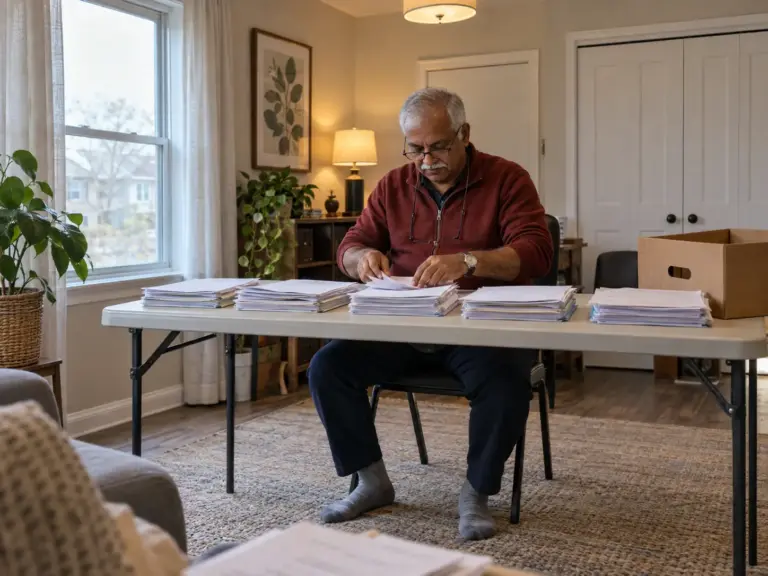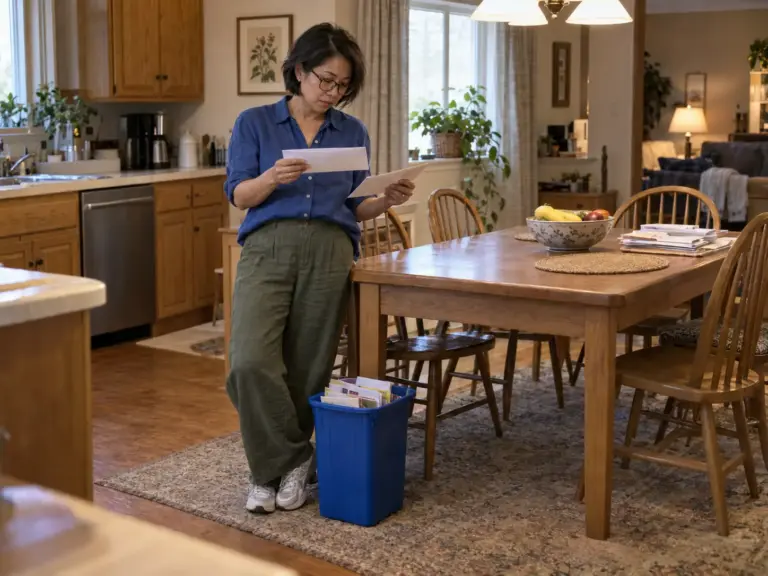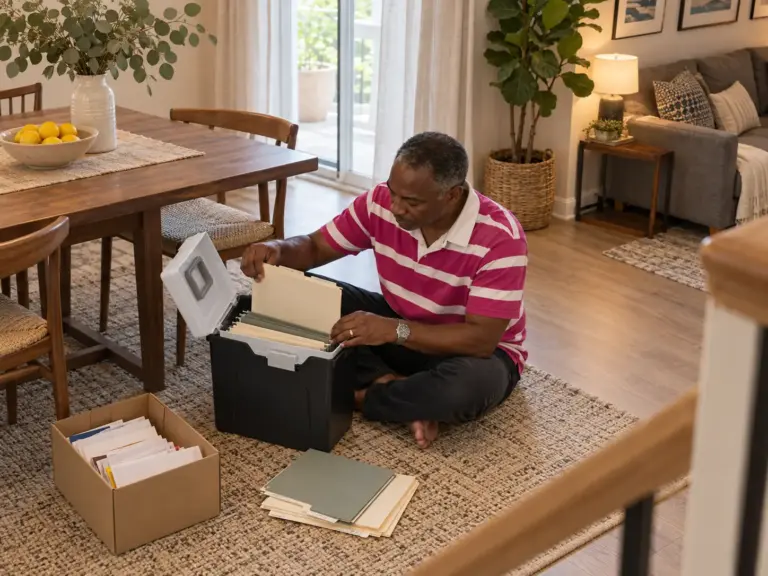
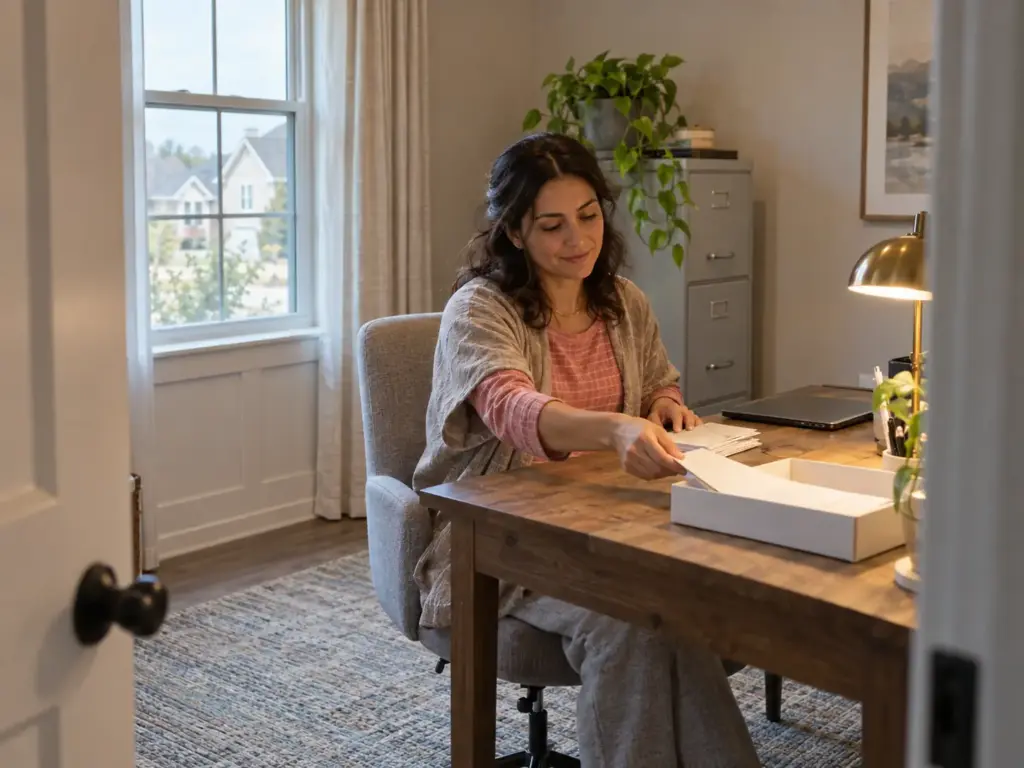
The scanner is still on the desk where you set it up, and next to it a second stack has started: this week’s bills, a school form, the insurance letter you meant to scan “later.” That stack is the first sign a plan to go paperless at home is slipping, and people who have kept a digital system running for years, in the MacPowerUsers forum threads and on the DocumentSnap blog, describe the same pile showing up just before the scanner went back into its box. It says less about your discipline than about the setup, because nothing in it tells tomorrow’s mail where to go. Below is the order that holds up, with the IRS rules wherever a number matters: start from today, pick a capture tool by volume, name and back up the files, decide which originals stay, and keep paper from flowing back in, while the physical sorting lives in your paper and file system.
Quick Answer
Going paperless at home works when the system handles new paper first and earns your trust before any original leaves the house.
- Pick a cutoff date and send all new paper to one inbox tray.
- Capture with a phone app for light volume, a sheet-fed scanner for heavy.
- Save searchable PDFs in year folders with date-first file names.
- Keep three copies, one offline, and test a restore before shredding.
- Keep vital originals; shred the rest only after its retention clock ends.
Why Going Paperless at Home Stalls Out
Most paperless attempts don’t collapse on day one. They fade somewhere around the third week, when the novelty is gone, the mail keeps arriving, and the scanning has quietly turned into a chore you schedule for “this weekend.” Three failure patterns keep turning up in abandoned systems, and each one leaves a visible trace on the desk, so you can usually tell which one is yours.
Scanning the Whole Past First
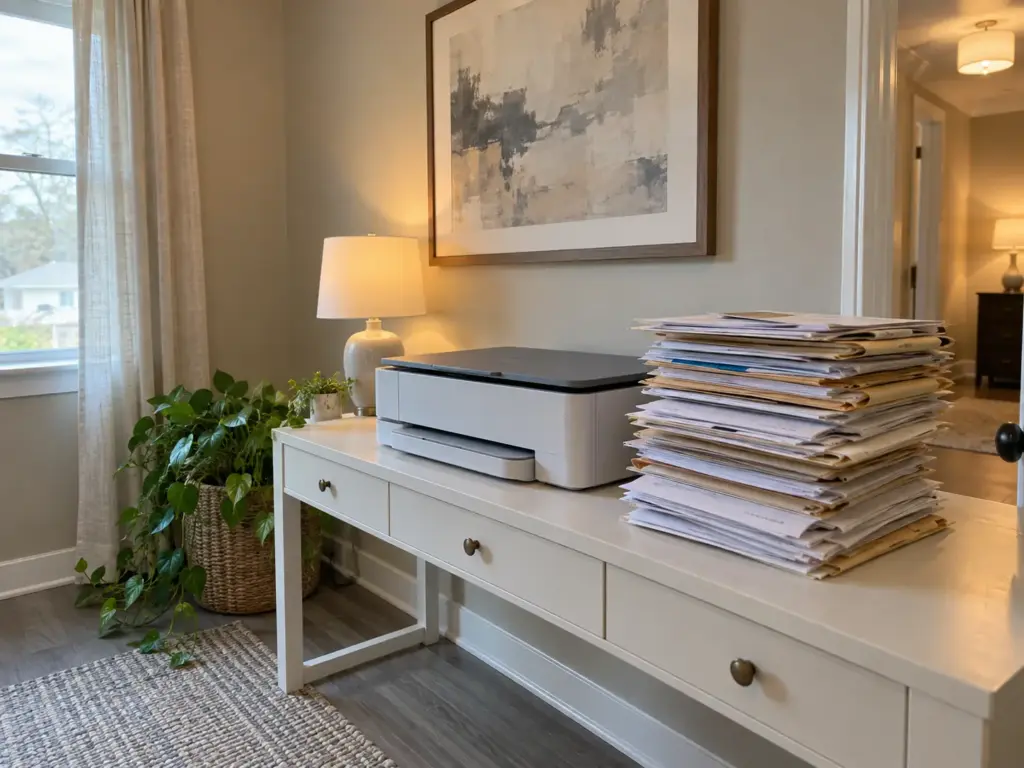
The instinct is to start with the filing cabinet: fifteen years of bank statements, every appliance manual, the folder of medical bills from a move two apartments ago. The first weekend gets through one drawer. The second weekend gets skipped, and by then the new mail is landing on top of the unscanned backlog, so you are now behind on a growing paper backlog and a new one besides.
A MacPowerUsers veteran who posts as Scout answered a newcomer with the rule that keeps showing up in those threads: “Just start with today. Don’t worry so much about going back in time. A fools errand.”
The backlog feels like the real job because it is the biggest thing in the room, but it is also the part with the lowest payoff. Most of those pages will never be opened again, scanned or not.
The Scanner That Needs a Free Evening
A flatbed turns paper into a ritual: lift the lid, place the page, close, scan, flip, repeat. A multi-page statement turns into a long job, and a process that needs a free evening stops on the first week without one. The writer of a DocumentSnap guest post says his first attempt went exactly this way: he “canned the idea” because of how slow the flatbed was.
Hardware ages in a second way, too. A long-time forum member describes Fujitsu scanners that still worked mechanically but never got 64-bit software, so he kept them running with third-party apps. A scanner from 2007 can outlive its own driver, which is a lock-in problem the backup section comes back to.
The Just-in-Case Pile
This one looks like caution. You scan the insurance renewal, the PDF lands on the computer, and the paper goes onto a stack “just in case.” That stack is distrust: you don’t believe the PDF will still be there, or that you’ll find it when the adjuster calls.
The paperless crowd has a name for paper drifting back onto the desk, paper creep, and its warning sign is physical rather than a feeling. A pile beside the scanner means the system is breaking, and people who have restarted more than once say they can spot it within about two weeks. It is tempting to call that a willpower problem. Partly it is, but mostly the cure is giving the digital copy reasons to be trusted: a name you can search, a backup you have actually restored from, and a written rule about which paper stays paper.
Start With Today, Not the Backlog
The plan that survives is smaller than the one you had in mind. It covers the paper arriving from now on, gives that paper exactly one place to land, and rescues only a short list of old documents.
Pick a Cutoff Date
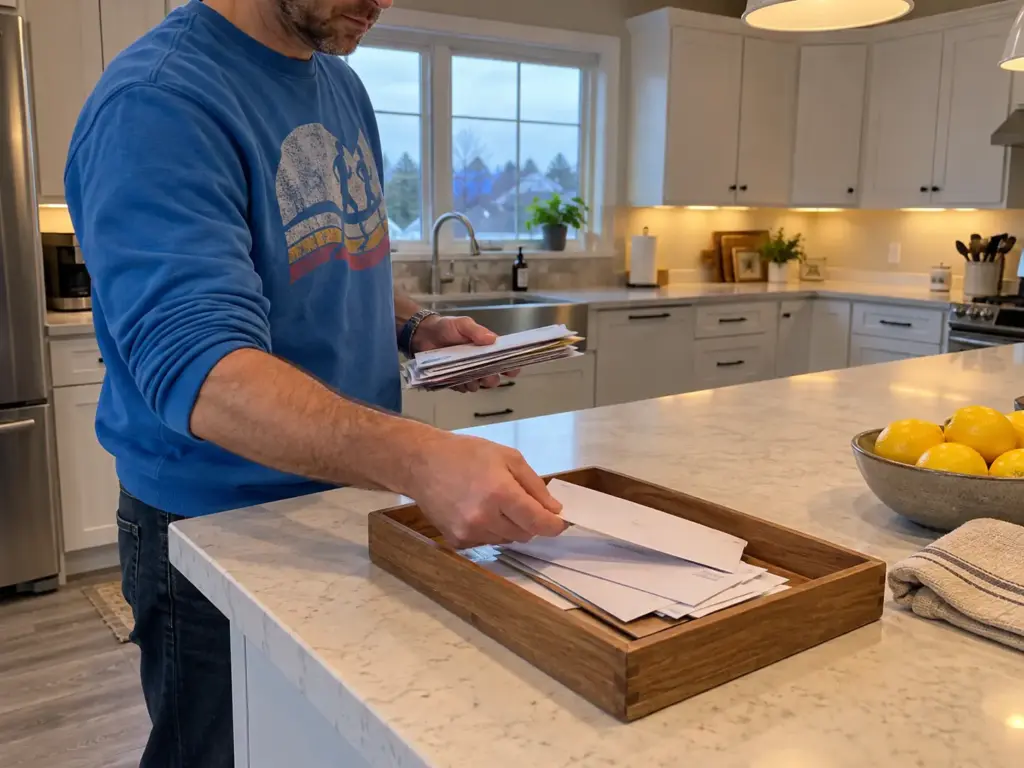
Choose a date, the first of next month or simply this coming Monday, and from that day every new piece of paper goes through the system. Everything older stays in its drawers and boxes, untouched, for now. The forum shorthand for this is the go-forward approach, and Lisa Woodruff’s Organize 365 builds its paperless plan on the same idea.
The common advice is to purge the whole house first and then go digital, and for someone with an empty month and one filing cabinet that can work. For a family with a cabinet in the office, a bin in the garage and a pile on the kitchen counter, a full purge first is how the project dies before the first scan. My call is the cutoff date every time, because the backlog doesn’t get worse while it waits. There’s real relief in a pile you are allowed to ignore.
Write the cutoff date on a strip of tape on the old filing cabinet. When you catch yourself reaching into it to “just scan a few,” the date reminds you that the cabinet is closed business until the new system has run cleanly for a month.
One Inbox for Everything That Arrives
An inbox only works if it is the single place paper goes. The household behind that DocumentSnap post got their system to stick after the partner bought in and all incoming paper started landing in one spot for processing. If two people drop paper in two places, you don’t have an inbox; you have two piles with a tray between them.
It doesn’t have to cost anything. A letter tray you already own, a shallow box, even a folder on the desk will do, as long as everyone in the house knows that’s where paper goes and nowhere else. If you want something sturdier, a desk tray that keeps the inbox in one spot is the one desk purchase this system really uses.
Cherry-Pick the Old Papers Worth Rescuing
The backlog gets one short, deliberate pass. Forum members call it the cherry-pick: pull out only the high-value papers (past tax returns, the home purchase file, the insurance papers and inventory, birth and marriage certificates) and bring those into the system in one sitting. If paper clutter has the drawers too jumbled to find them, start with sorting the physical pile first and come back with a short stack.
For low-value history you still don’t want to throw away, skip the naming entirely. One member bundled decades-old medical records into a single big PDF instead of naming each page, which takes minutes and keeps the papers searchable if the scanner runs text recognition. Nobody needs forty separately named files for a stack they will open once in ten years.
Phone or Scanner: Let Your Volume Decide
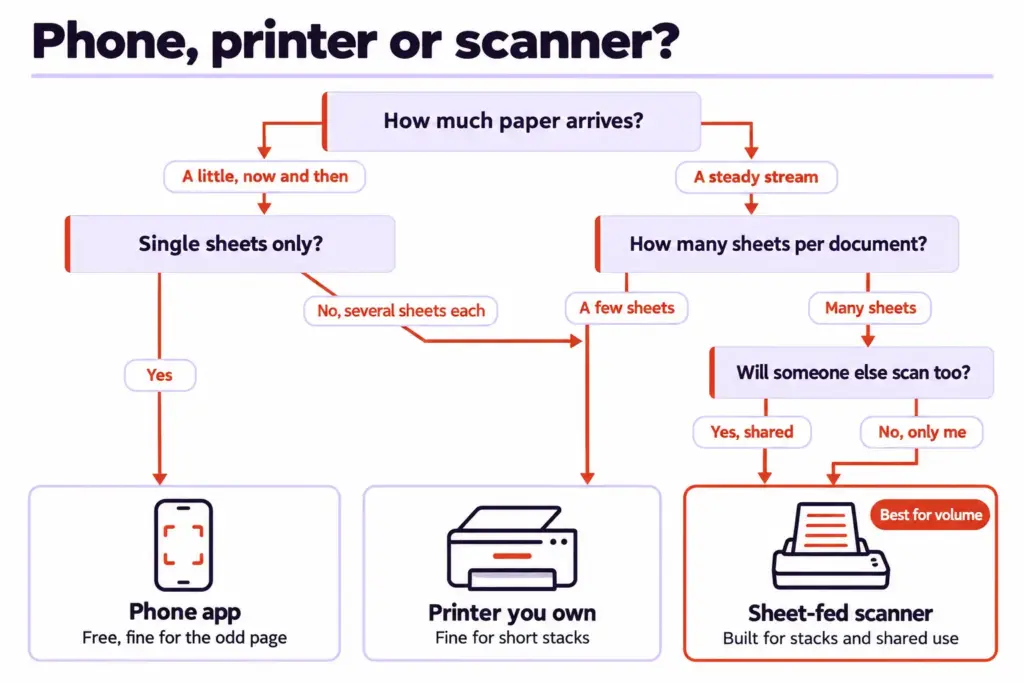
Ask five people whether you need a scanner and you’ll hear two confident, opposite answers: the phone is all anyone needs now, or a sheet-fed scanner is non-negotiable. Both are right for someone. What decides it is how many pages arrive each week, how many pages each document runs, and whether anyone besides you will ever do the scanning.
When a Phone App Is Enough
Start with the free option. A free phone scanner app lets you scan documents with the camera (most cloud-storage apps have a scan button built in) and crops the page, flattens it and saves a PDF, and for a few single sheets a week it is all you need: a receipt, a permission slip, a one-page notice from the city. If your weekly paper fits on one hand and nobody else in the house will scan, stop here and keep the money.
But the phone starts to drag on multi-page documents. One heavy user on MacPowerUsers says he can scan with his iPhone, yet finds his sheet-fed scanner “far easier,” especially once a document runs past a page or two. Photographing an eight-page statement means eight separate shots, eight crops and a chance to miss page five.
When a Sheet-Fed Scanner Pays Off
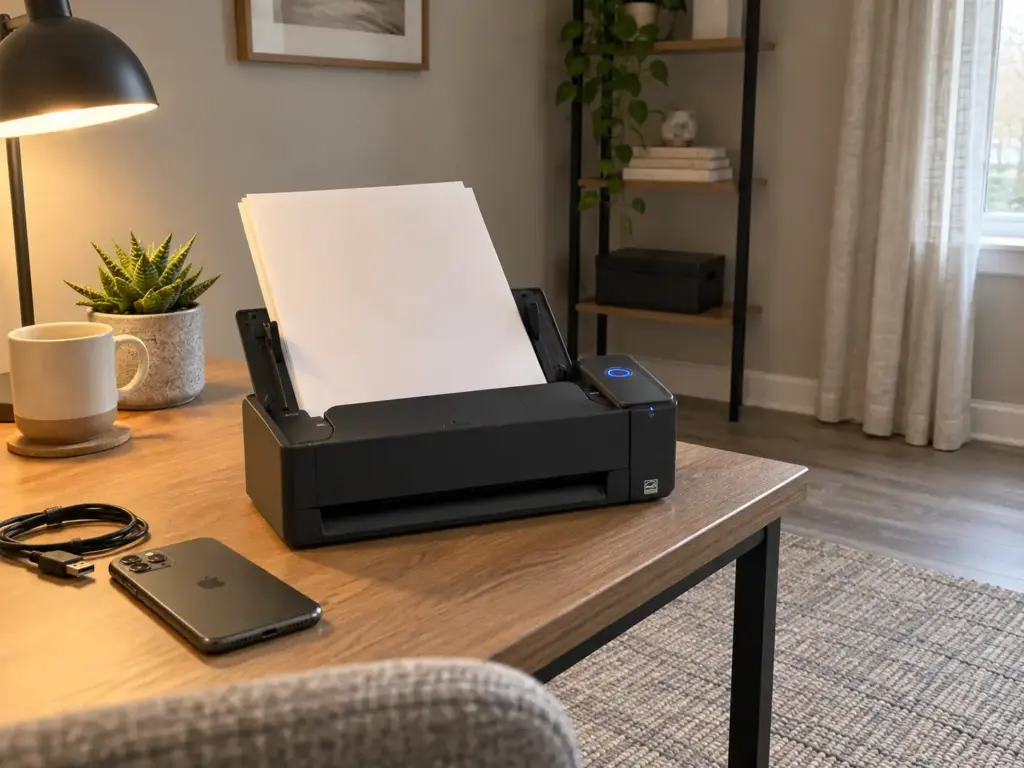
The volume rule is simple enough to keep in your head. If multi-page statements, medical bills or school packets arrive every week, if you have a cherry-picked backlog to feed through, or if a second person in the house needs to scan without learning an app, a sheet-fed scanner, the document scanner built for stacks, is the tool that keeps the weekly session short. For a household like that, the free phone app stops being the cheap option, because it costs you time every single week.
The ScanSnap iX1300 is the compact end of that category: a 20-sheet feeder, 30 pages per minute double-sided, 4.4 pounds, and about 4.5 x 11.7 x 3.3 inches, so it sits on a shelf rather than claiming the desk. A 20-page stack goes through in about a minute. The ScanSnap line also has a reputation for lasting: one forum member reports roughly 20,000 sheets over 10.5 years on an older iX500 with nothing more than an occasional cleaning.
It sits at the premium end of home scanners. The same forum users who praise the hardware call its software a bit clunky, and older models eventually stopped getting driver updates. Buy it for the feeder, and keep your files in plain PDFs so the software never matters much.
What to Do With the Flatbed or All-in-One You Already Own
Don’t throw out the flatbed. Keep it for the jobs a feeder can’t take: a fragile birth certificate, a creased photo, a bound booklet, anything oversized. It just shouldn’t be your daily tool, because it is the scanner people abandon.
Check your all-in-one printer before buying anything, though. If it has a document feeder on top (the slot that pulls pages through on its own), it is already a slow sheet-fed scanner. Try running one week’s mail through it. If the session stays short, you just saved yourself a purchase.
Name It, Store It, Make It Searchable
The real test comes on some ordinary evening when you need one policy number or one receipt for a return. Either you find it in seconds or you realize your digital filing system is just the old drawer on a screen.

A Naming Pattern You Can Type Without Thinking
Put the date first, written year-month-day so files sort themselves, then the provider, then a few words of description: 2026-10-03 City Water October bill. Above that, one folder per year, and inside each year a handful of plain categories like taxes, insurance, medical, home and car. That’s enough structure.
Decide the order once and never change it. A file naming convention that drifts between “Water bill Oct” and “2026-10 water” breaks sorting, and search starts returning half of what you need.
Write the naming pattern on an index card and tape it next to the scanner. The person who didn’t set up the system will follow a card; they won’t follow a rule that lives only in your head.
Where the Files Live
The files can live in cloud storage (Dropbox, Google Drive, Microsoft OneDrive) or on an external hard drive at home, and the folder tree is your digital filing cabinet. Which one matters less than choosing one and keeping its structure plain. A system split across three services is a system where nothing can be found.
Make one folder called Inbox at the top of that structure. It mirrors the tray on the desk: every scan lands there first with whatever name the scanner gives it, and gets renamed and moved during the weekly session. The tray and the Inbox folder should be empty at the same moment.
Let OCR Do the Searching
OCR (optical character recognition) reads the text in a scanned page and makes the PDF searchable, so typing “policy” or a provider’s name finds the file even when the name is vague. Most scanner software and scanning apps run it as they save, and Adobe Acrobat can add it to a PDF that came in without it. With OCR in place, elaborate tags and deep subfolders become optional.
Save everything as searchable PDF, the format every computer and phone in the house can open; the exit plan in the next section depends on it.
Back It Up Before You Shred Anything
The just-in-case pile exists because you don’t trust the digital copy. A backup you have restored from at least once is what removes that reason, and it is the only thing that should let paper leave the house.
Three Copies, Two Kinds of Storage
Scout’s advice in the same forum is the rule of 3 for backups, and another member, glenthompson, adds the part people skip: “Multiple backups using different methods.” In practice that means the files on your computer, a second copy in the cloud, and a third on a drive that sits unplugged most of the time. Two kinds of storage, so one failure, one hacked account or one house fire doesn’t take all three (the full version of the idea is often written as a 3-2-1 backup, with one copy kept off-site, which the cloud copy covers).
Start free. Scanned documents are small, and a free cloud tier you already have from your phone or email usually has room for a household’s scans. The one purchase here is the offline drive.
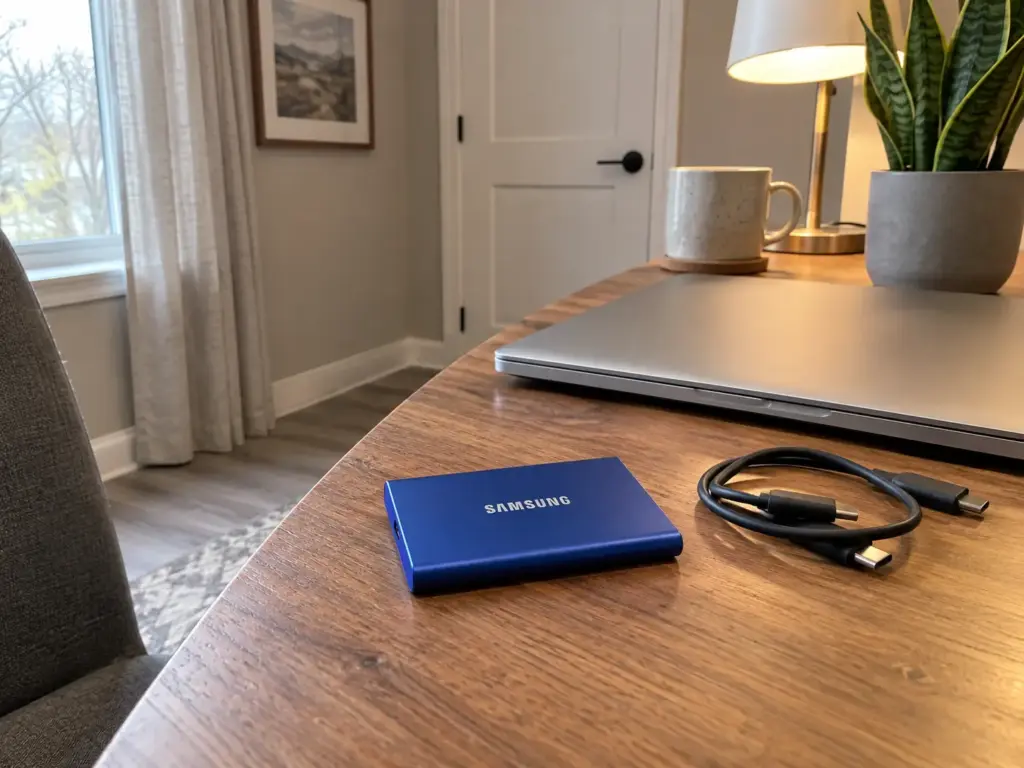
The SAMSUNG T7 Portable SSD 1TB connects over USB 3.2 Gen 2 at up to 1,050 MB/s, so copying the whole archive takes minutes, and it’s small enough to live inside the originals box described at the end of this guide. If you want to spend less, the WD Elements SE is a plainer portable drive that does the same job. Either way, an offline drive only protects what was on it the last time you plugged it in (which is the whole point, and the whole weakness), so put a monthly reminder on the calendar.
A Backup You Have Not Tested Is Not a Backup
The line belongs to glenthompson: “a backup that hasn’t been tested is not a backup.” An untested backup tends to reveal its problem on the day you need it, which is the worst day to find out.
The test takes ten minutes. Pick three files at random, restore them from the cloud copy to another device, then from the offline drive, and open each one. Do it once before the first original goes into the shredder, and again every few months.
Restore your test files on a different device than the one that made them, such as a partner’s laptop or your phone. If they open there, they will open for whoever needs them on the day you can’t help.
Keep an Exit Plan: Plain Folders, Open Formats
Apps come and go. Reddit commenters who went paperless years ago worry openly about the software they built on going defunct, and more than one specialty paperless service has already shut down, taking its neat interface with it. A system built inside one app’s database (a note app like Evernote is the usual example) or in a proprietary format is a system that leaves when the app does.
The forum answer is blunt: “Keep digital files in a generic files & folders format, not in a proprietary database and not in a proprietary file format.” Another member adds that he stores everything as PDF and has no problem reading his records on any system. A tagging app with smart folders looks like the more advanced setup, and for a work project it may be. For a household archive that has to outlive the app, I’d take the plain folder tree every time, and let any app you enjoy sit on top of it rather than hold it.
Security is the other half of trusting the cloud. Turn on two-factor authentication with the provider, and keep the passwords in a password manager that someone else in the household can reach in an emergency.
Which Originals to Keep and Which to Shred
A MacPowerUsers member, scanning his house-closing documents, stopped halfway to ask the question that freezes most people at this stage: “What documents should I actually keep versus scanning and shredding?” Three tiers answer it (scan and keep, scan and shred, shred without scanning), plus one check before anything leaves.
Tier One: Keep the Original and Scan It Too
Some paper stays paper. Community consensus among people who have gone paperless (not a legal requirement, just what they keep) covers wills, deeds, birth certificates, notarized or seal-bearing documents, signed contracts and the car title: the original stays, and a scan goes into the system for reference. AARP is more specific: don’t shred original Social Security cards, birth certificates, mortgage paperwork, deeds or wills, although some experts suggest shredding unneeded photocopies of them.
Two tax-related items belong here as well. The IRS says to keep copies of your filed tax returns, and to keep property records until the limitations period expires for the year you sell the property, so the home purchase and improvement papers outlive the usual clock by years. These originals still need a physical home, and a filing system for the papers that stay on paper keeps them from becoming the next pile.
Tier Two: Scan, Then Shred After the Clock Runs Out
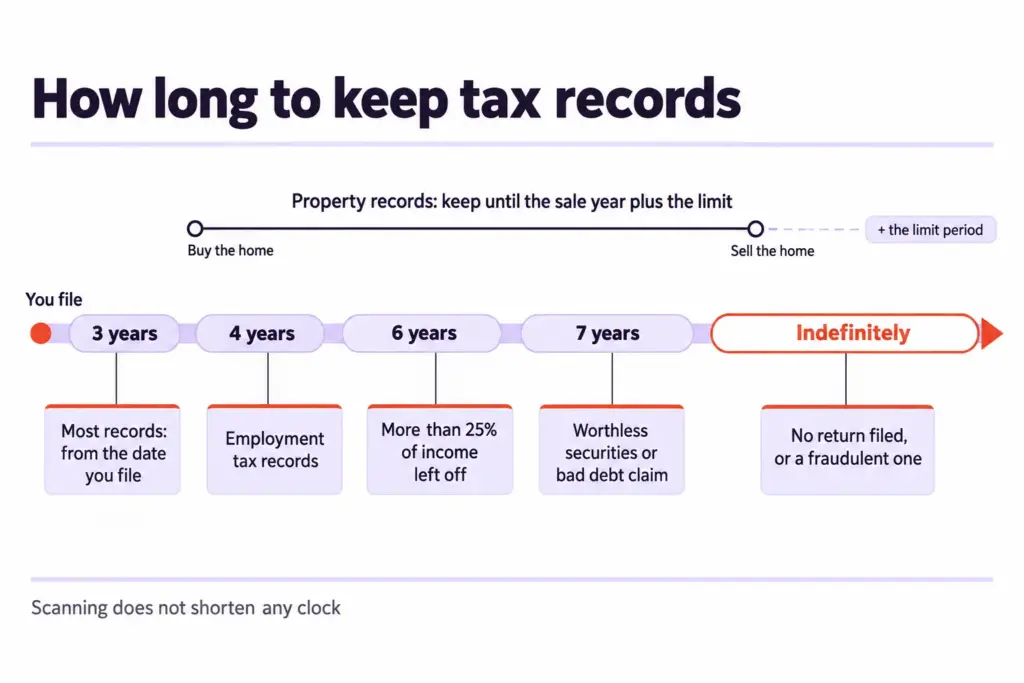
Tax documents that support a return (receipts, 1099s, charitable letters, the backup for deductions) are scanned now and kept as paper until their clock runs out. The IRS says to keep records that support income, deductions or credits until the period of limitations for that return expires, which is generally 3 years from filing.
The three-year figure gets quoted as if it applied to everyone, and it’s only the general case. The clock runs 6 years if you left out income worth more than 25% of the gross income shown on the return, 7 years for a claim on a worthless security or a bad debt, at least 4 years for employment tax records (anyone paying a nanny or other household employee), and indefinitely if no return was filed or a return was fraudulent. The full list is in the IRS guidance on how long to keep records.
AARP adds shorter clocks for everyday statements: keep bank statements about a year, shred pay stubs once they match your W-2, and shred monthly investment statements after the annual one arrives.
Label each paper folder with the shred-after year, in marker on the outside, not inside the scan’s file name. In January you read the folder fronts, pull the ones whose year has arrived, and feed them to the shredder without opening a single file.
Tier Three: Shred Without Scanning
The biggest tier is the one that never touches the scanner: junk mail, prescreened credit offers, duplicate copies, expired coupons and anything you would never look up again. Non-sensitive mail can simply be torn up and recycled for free.
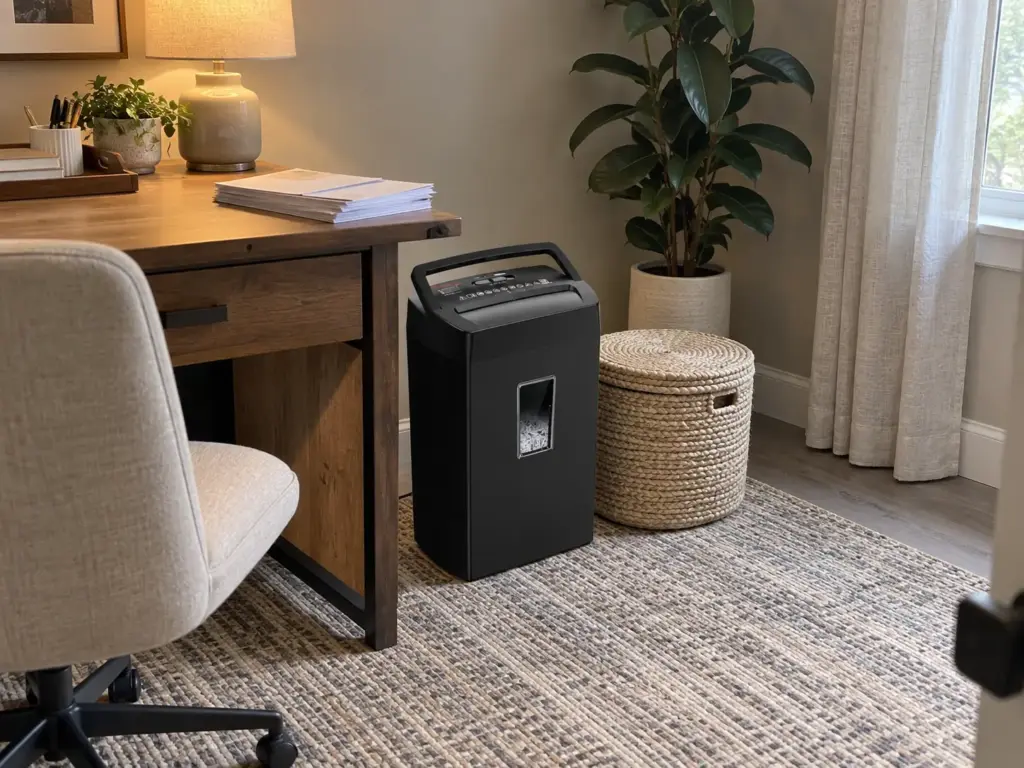
Anything with an account number, a Social Security number or a signature on it needs a shredder. The Bonsaii 12-Sheet Cross Cut Paper Shredder takes 12 sheets at a time into a 5.5-gallon bin, which suits a weekly shred session rather than a once-a-year marathon, and it sits in the budget-to-mid range. It cuts cross-cut strips, not the finer micro-cut confetti, so anyone who wants the highest shred security for their tax-year purge should shop one level up.
Check Before You Discard
Scanning doesn’t shorten any of these clocks. According to the IRS recordkeeping rules, “All requirements that apply to hard copy books and records also apply to electronic records.” The PDF has to be as complete and as findable as the paper ever was.
The IRS also warns against discarding records until you have checked whether you need them longer for other purposes, because an insurer or a lender may ask for more than the tax clock covers. For warranties, medical files and loan papers, there is no single number to quote here, so check with the insurer or the lender before anything from those folders goes into the shredder.
Stop Paper From Creeping Back In
A finished system meets the mailbox the very next day. Systems rarely die when they are built; they die the first busy week that skips the session, while the mail keeps refilling the tray.
Switch Off the Paper at the Source
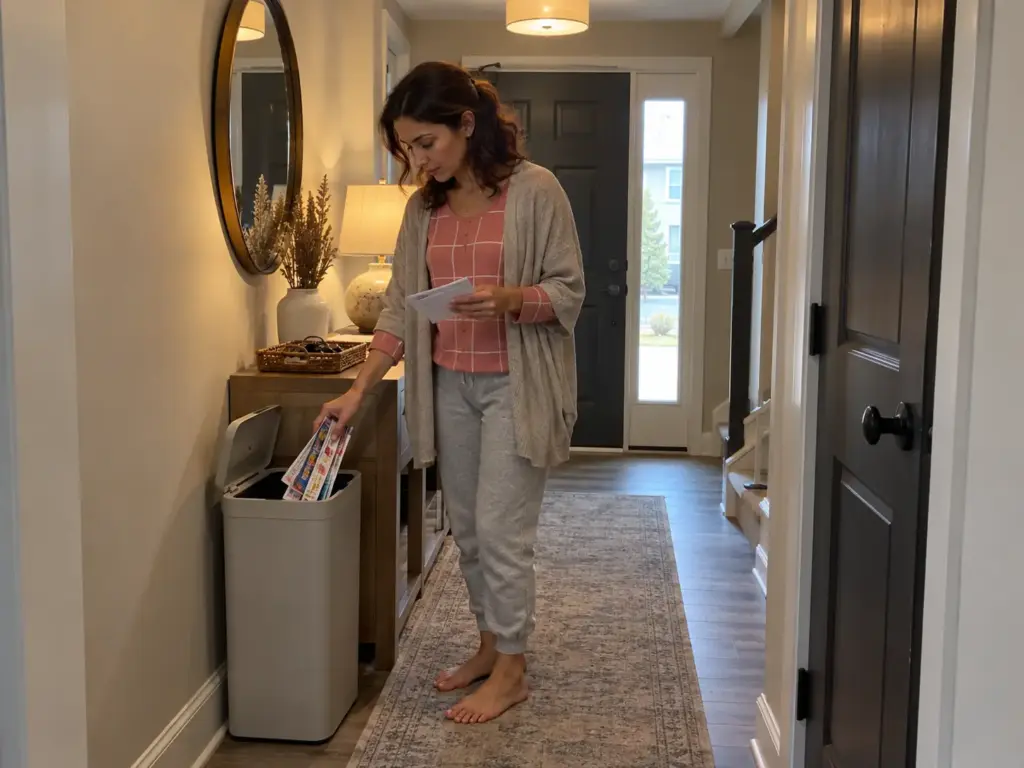
Switch every account that offers it to paperless billing, e-statements and e-bills, starting with the ones that send multi-page statements. Then cut the credit-card offers. Following the FTC’s steps for opting out of prescreened offers, you can opt out for five years at optoutprescreen.com or by calling 1-888-5-OPT-OUT, and a permanent opt-out requires returning a signed form. The request asks for your name, address, Social Security number and birth date, so use only the official site the FTC names, and know that it stops offers built from credit bureau lists only; mail from other sources keeps coming.
That leftover mail still needs a gate. Where the mail lands decides what gets sorted, and a mail landing spot by the door catches catalogs and junk before they ever reach the inbox tray.
The Weekly Processing Session
Put about twenty minutes in the same slot every week, the rhythm long-time paperless bloggers describe. Keep the order fixed: empty the tray, scan what needs scanning, rename everything in the Inbox folder, file the originals into their tiers, and shred tier three. With a sheet-fed scanner, the scanning itself is the shortest part.
The session happens at the desk of your home office, and it goes faster at a desk that stays neat than at one where the scanner shares space with last week’s coffee mugs. Twenty minutes, weekly, same chair. Skip one and next week runs forty.
The Pile That Says It Is Coming Back
The signal is the same one from the start: paper stacking up beside the scanner. When it appears, run the session that day instead of waiting for the usual slot, because a two-week pile is a slow chore and a four-week pile is the old backlog starting over.
If the pile shows up twice in a month, the slot is wrong, not you. Move the session to a time that actually stays free, and check whether somebody in the house has started a second drop spot.
Share Access and Reclaim the Space
Sooner or later the person who built the system will be traveling, in the hospital or simply busy, and someone else will need one document fast. The system has to work for that person too.
What the Partner Who Did Not Set It Up Needs to Know
Forum member Arthur keeps a paper copy of his computer, Apple ID and email logins and his encryption keys somewhere safe, and that one sheet is what makes a digital archive reachable by anyone else. Store it with the originals, along with a short note: where the files live, the naming pattern, where the offline drive sits. Plain folders of PDFs do the rest, since your partner doesn’t need to learn your app, only to open a folder called 2026 and type a word into search.
Sensitive Files and Shared Files
A common setup splits the archive in two. A shared folder for the household holds what anyone might need on a normal day (insurance cards, utility accounts, school forms, the car registration), and a separate restricted folder holds IDs, tax returns and account statements.
The everyday folder can then be shared with a partner, an older child or a parent’s caregiver, while the restricted one stays behind stronger sign-in protection, and both keep the same naming pattern.
What to Do With the Empty Cabinet
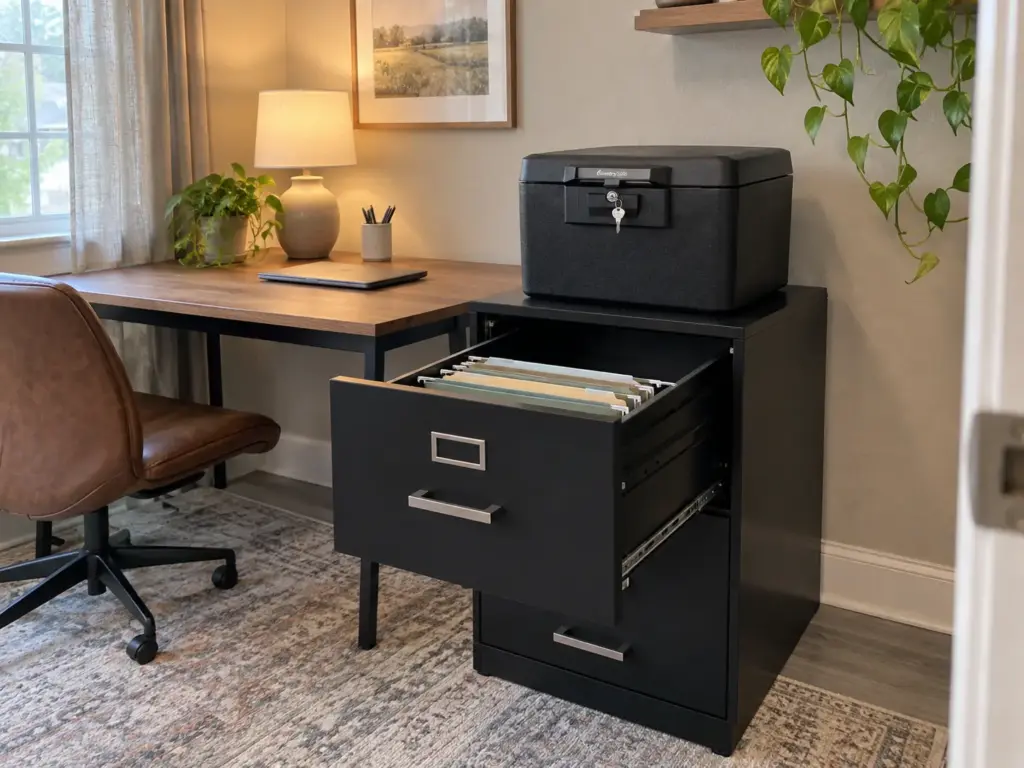
The space is the payoff people underestimate. Forum member glenthompson describes two drawers of paper shrinking to about a quarter of one drawer once everything was scanned and only the originals stayed. You end up with a small originals box, not a cabinet.
A plain lidded box you already own can hold that tier for free.
If you want a fireproof box, the SentrySafe 1170 Fireproof Document Box measures 13.6 x 15.3 x 12.1 inches, locks with a key, and has room for the tier-one originals, the login sheet and the offline backup drive together. It is a box for originals, not a filing cabinet, so if your tier one outgrows it, that is a sign some photocopies slipped in.
And the empty cabinet? Give it a new job, or sell it (a cabinet you’re no longer feeding has a way of filling with something else).
One Tray, Three Copies and a Short Box of Originals
A paperless home starts from today with one inbox, and the backlog waits. Capture by volume, save plain searchable PDFs, and keep three copies you have actually restored from. Keep the right originals, shred the rest on their clocks, and turn the paper off at the source so the tray stays light.
Three months from now, look at two things: whether the tray empties on its own each week, and whether a file pulled from the offline drive still opens on another device.
Today, write a cutoff date on an empty tray you already own and put it where the mail lands. By the end of the week, notice what collects in it; that small stack is the true size of your weekly session.
Frequently Asked Questions
01How do I go paperless at home if I have years of old paper?
Pick a cutoff date, run only the paper arriving from that day through the system, and let the backlog wait in its drawers. Later, rescue the high-value old papers in one sitting: tax returns, the home purchase file, insurance records and certificates.
02How much does it cost to go paperless?
Light use can cost nothing, since a phone with a free scanning app and a free cloud tier cover a few pages a week. The real purchases come with volume: a sheet-fed scanner, an offline backup drive and a cross-cut shredder.
03Do I need a scanner or is my phone enough?
A phone app is enough for a few single pages a week, but multi-page statements and weekly volume go much faster through a sheet-fed scanner. If someone else in the house will scan too, the scanner is usually simpler for them.
04What documents should I keep as paper even after scanning?
Most people who have gone paperless keep the originals of wills, deeds, birth certificates, Social Security cards, mortgage paperwork and notarized or sealed documents. That is community consensus and AARP guidance, not a legal rule, so scan them too and keep the paper in one small box.
05How long should I keep scanned tax records?
The IRS says to keep records supporting your return generally for 3 years from filing, with longer clocks of 4, 6 or 7 years in specific cases. Electronic records face the same requirements as paper, so scanning does not shorten the clock.
Disclaimer: ClutterlessNest is a participant in the Amazon Services LLC Associates Program. As an Amazon Associate we earn from qualifying purchases. This article may contain affiliate links — if you buy through them, we may earn a small commission at no extra cost to you. We only recommend products we have tested or genuinely believe in.