
The laptop is still open on the dining table, its charger runs across a place mat to the outlet behind your chair, and someone is walking toward you with a stack of plates while your folders slide toward the salt shaker. That scene is not a clutter problem. It is a portable home office setup that was built to stay, sitting on a table that has a second job.
The advice on screen height and keyboards rests on OSHA’s workstation guidance and Cornell’s ergonomics research, not on a gear wish list, and below you get the lean kit for remote work or a hybrid schedule, the eye-level fix for each surface, power and a second screen without a cable mess, where the kit lives, three budget paths, and why these setups quietly get dropped. (If you are still choosing where the office goes in the first place, settle that first.)
Quick Answer
A portable home office works when the kit is small, comes out in one move and is gone before the table is needed for meals:
- Raise the laptop screen to eye level with a stand or a stack of books.
- Add a separate keyboard and mouse so your wrists stay low.
- Keep everything in one pouch with a single cord to the wall.
- Give the kit a fixed address you walk past daily.
- Clear it in the same couple of minutes at the end of each workday.
How a Portable Home Office Setup Works on a Shared Table
A portable home office setup is a small kit, a fixed address and a routine, and the kit is the easy part. What decides whether it survives is how few steps stand between its shelf and a working screen.
What goes in the box and what stays out
You have probably seen the gear posts: a floor covered in equipment, a bag that weighs more than the laptop, a cable for every possible port. For a cafe or a hotel that might make sense. At home the cost of a big kit is steps, not weight, because each extra item is one more thing to unpack when work starts and one more thing to repack when you have to clear the table.
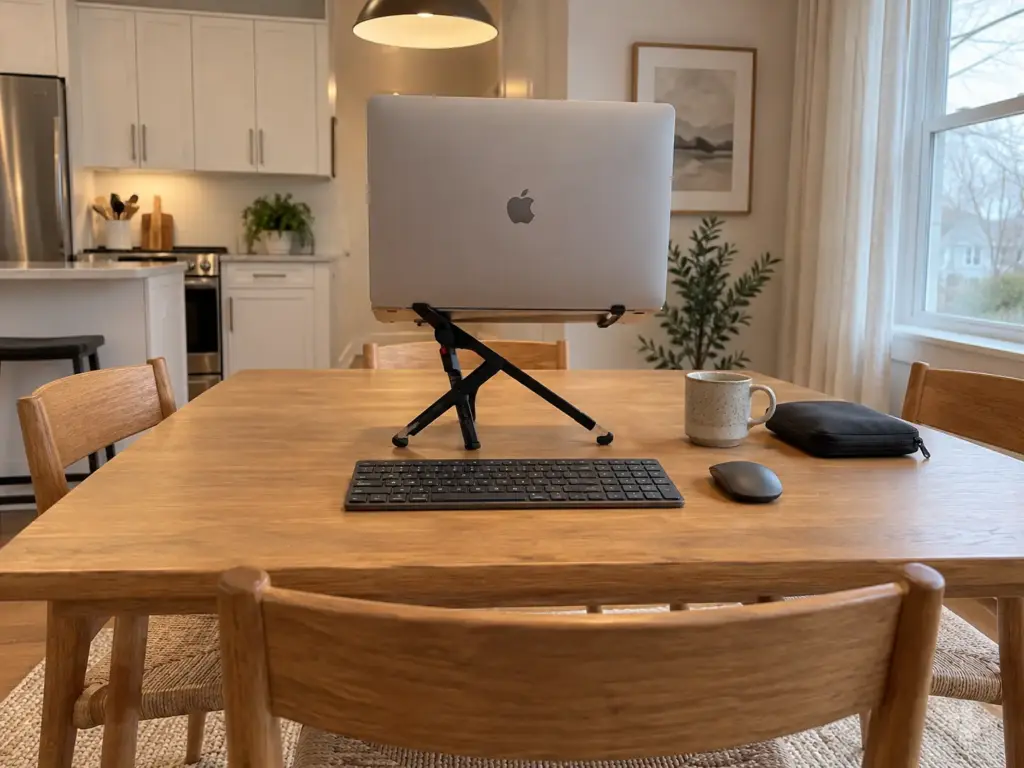
The lean kit is five things. Something to lift the screen (a laptop stand or a stack of books), a separate keyboard, a mouse, one pouch that holds the small pieces, and one cord to the wall. Call it a mobile office, a portable workstation or a pack-away desk: it is the same five things.
A second screen is optional, and Cornell’s ergonomics guidance treats an external monitor as one of several options for sustained laptop work rather than a requirement. What stays out: the docking station you might use twice a month, the spare charger “just in case”, the desk mat, the second mouse. None of them earns its place in a kit that has to disappear daily.
The test for any item: count the steps it adds to the set-up and to the clear. If clearing the table takes more steps than you can do without thinking, the kit is too big, and a too-big kit is the one that gets left out “just for tonight”. It is a rule of thumb, not a statistic, but it settles most arguments about whether a gadget belongs in the pouch.
Who needs the full kit and who can skip it
Not everyone needs all five pieces, and the deciding number is how long you sit there. Cornell University’s ergonomics guidelines put it in hours: under about an hour a day of computer work, ergonomics is a low priority; more than an hour a day, setting things up properly is advisable; more than four hours, do it right away. So the person who answers email at the table after dinner can run on a couple of books and the laptop’s own keyboard. The person who works a full day at that table needs the stand, the keyboard and the mouse, no shortcuts.
The three budget paths further down are sorted by exactly those hours.
The good news: a dining table is already the right height for work. Cornell puts a good surface for computer work at 28 to 30 inches off the floor, which suits most adults and is where most dining tables sit. The furniture is fine, and the screen is what has to change.
Why the faff is the real enemy
A Mumsnet poster asked how to reclaim the dining table “without lots of faff resetting the computer up every day”, and the replies tell the rest of the story. One person who left everything set up on the table couldn’t stand it being there and moved to a corner desk instead. The table was never the problem in that thread. The faff was: the fiddly steps that make leaving it all out feel easier than packing it away.
Faff has a specific shape at a dining table. You crawl under it to reach the outlet behind the sideboard, restack the books because the screen is now a little too high, and find the mouse in yesterday’s bag and the keyboard paired to someone else’s tablet. None of those steps is hard on its own, but together they cost a few annoying minutes twice a day, and that is all it takes for “I’ll leave it out tonight” to become the system.
So the design goal for a pack-away office is not the best gear. It is the fewest decisions. Same books, same order, same pouch, same spot, so the set-up runs on autopilot and the clear does too.
If books are your stand, pick the exact stack that puts the screen at eye level once, then keep those books together with a rubber band or a strap. You stop re-finding the height each morning, and the stack has an obvious home instead of drifting back to the shelf one book at a time.
The Core Trio That Puts the Screen at Eye Level
The core trio is a stand, a keyboard and a mouse, and the order matters. The screen goes up first, because that is where the strain starts, and the other two follow because lifting the screen strands your hands.

Why a flat laptop fails your neck
Say you lifted the laptop onto a pile of books last week and your neck felt better within a day. Then your wrists started complaining, because the keyboard went up with the screen. That is the other half of the problem, and it explains why the stand never works alone.
Start with the screen. According to OSHA’s monitor guidance, “Place monitor so top line of screen is at or below eye level.” A laptop flat on a table puts the screen well below that, so your head tips forward for hours and the neck strain builds.
OSHA also wants the screen 20 to 40 inches from your eyes and the tilt kept within 10 to 20 degrees. A narrow table that forces the laptop about a foot from your face fails the distance rule even if the height is right.
Then the keyboard. Cornell describes laptop design as inherently awkward: when the screen sits at a comfortable height and distance, the keyboard doesn’t, and the other way around. Raise the laptop and the keys climb toward your chin. Lower it and the screen drops toward your lap.
The only way out is to split them, which is why the stand, the keyboard and the mouse work as a trio. Buy one without the other two and you have moved the strain, not removed it.
Eye level on a dining table, a sofa and a bed
The dining table is the easy case. At 28 to 30 inches it already matches desk height, so you sit in a normal chair, raise the screen with a stand or books, and put the keyboard and mouse flat in front of you. The coffee table runs much lower, low enough that no stand closes the gap between your seat and the keys without you hunching over them. It is fine for a quick email and a poor choice for a working day.
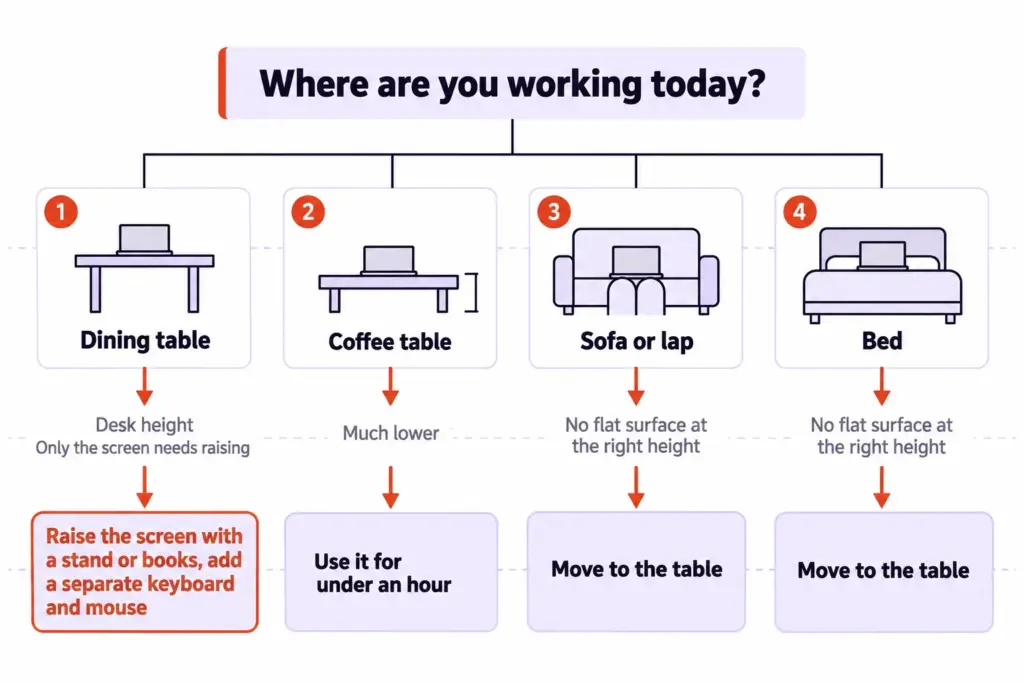
The sofa and the bed share one flaw: there is no flat surface at the right height at all. A laptop on your knees puts the screen low and close, and propping it on a cushion or a lap desk only trades a bent neck for bent wrists. Both work for the under-an-hour jobs Cornell calls low priority.
Past that, move to the table. The kit you are building is portable precisely so that moving to the table takes one trip, not a negotiation with yourself.
The stand: books, a stick-on or a folding riser
Free comes first. OSHA itself calls a book under the front edge of a monitor a “temporary solution” for tilt, and a stack of hardcovers or a sturdy shoebox under the laptop does the same job for height. If you work at the table an hour or two a day, that may be all the stand you ever need. But books are bulky: they don’t fold, and they wander off.
If you want something that folds into the pouch, a rigid folding laptop stand sits at the top of the range.
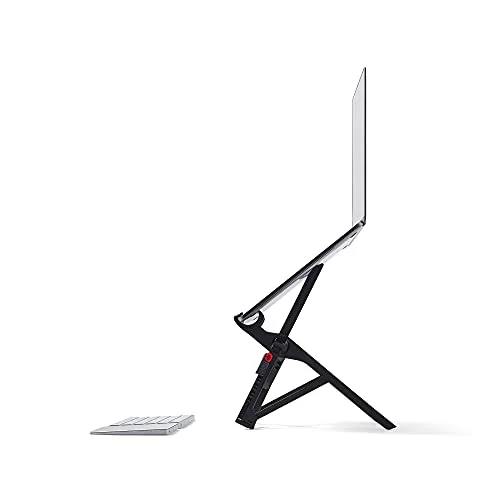
The middle option takes the opposite approach: instead of a separate part, it lives on the laptop. The MOFT Adhesive Laptop Stand sticks to the underside of laptops from 11 to 16 inches and folds flat against it, so there is no loose piece to forget in a drawer. The trade-off shows up in reviews: at its taller settings it is reported to wobble when someone types hard on the laptop, and the adhesive may weaken if you peel it off and re-stick it many times. With a separate keyboard you are not hammering the raised laptop, which should limit most of the wobble.
A keyboard and mouse that live in the pouch
Once the screen is up, the keyboard has to come down to elbow height, which means a separate one. One poster on the MPU Talk forum describes a neat version of the pack-down: the keyboard and trackpad slide under the raised stand, the closed laptop rests on top, the headphones go in their case, and “my desk becomes a dining table again”. That is the target. Every piece should fit somewhere in that small stack.
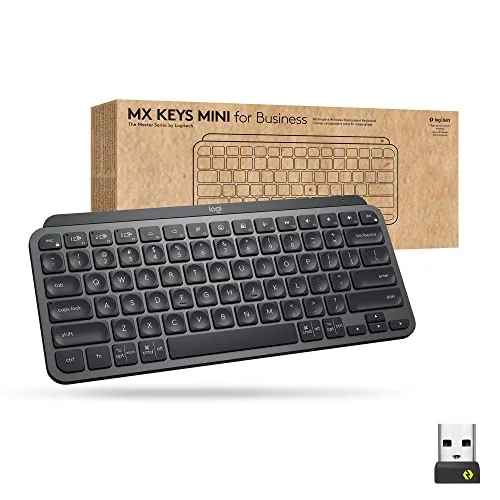
Connection type matters more in a pack-away kit than on a fixed desk, because the keyboard reconnects daily. Another MPU Talk poster carries a dongle-type keyboard and mouse “because when I use Bluetooth it disconnects too much”. That complaint is about Bluetooth keyboards in general, not any one model, but it is worth weighing if your household has a lot of devices competing for the same connection. Any compact or foldable keyboard that reconnects reliably does the same job, and the right pick is the one that survives a daily reconnect.
For the mouse, the one you already own is usually the right answer. If it is too big for the pouch or skips on your table, the Logitech MX Anywhere 3S Wireless Mouse is a compact travel mouse that tracks on a glass tabletop, which matters if your dining table is glass. No repeated complaint about it surfaced.
Power, Cables and a Second Screen Without the Sprawl
Once the trio works, the extras start piling up: chargers, cords, maybe a monitor. A two-minute reset quietly turns into a ten-minute one here, so every item has to earn its cord.
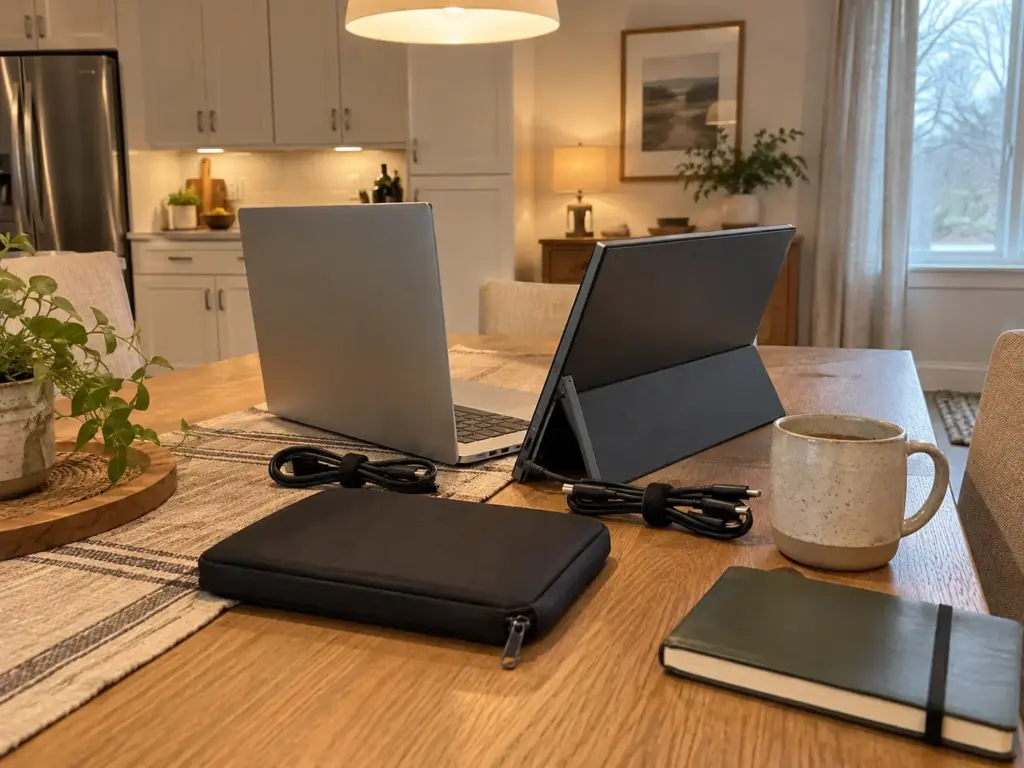
One cord to the wall
Your kit is down to a stand, a keyboard and a mouse. Then the chargers show up (laptop, phone, headphones, maybe a monitor), and the reset that took two minutes now takes ten.
Start with the power strip already in your house, the one behind the TV or in the junk drawer (a short extension cord with a few sockets does the same job). Everything plugs into it, so the clear is one plug instead of three. If you don’t have a spare, the ORICO PD 20W USB-C Travel Power Strip is pocket-sized with four AC outlets and three USB ports.
Know its limit: per the listing, the USB-C port delivers 20 watts, which is plenty for a phone and not something to count on for a laptop. Let the laptop keep its own charger and plug that into one of the AC outlets.
Cable ties that stay in the pouch
Bundle each cord as you clear, so tomorrow’s set-up begins with cables that already lie flat instead of a knot. Rubber bands work and cost nothing (they do go brittle eventually, usually when you are in a hurry). The VELCRO Brand ONE-WRAP Cable Ties last longer: they are 8 inches long and grip themselves, so one tie can live permanently on each cord and never needs hunting for.
Traveling cords are a different job from desk cords. Tidying the cords that stay on a desk all day is cable management with trays and clips; cords that live in a pouch just need to coil fast and stay coiled.
Coil each cord starting from the plug end and close the tie near the device end. The free end then comes out first when you set up, and you can plug in while the rest of the cord is still bundled, so nothing unspools across the table.
A second screen only when you need it
A portable monitor tends to be the first upgrade people reach for once the kit works. For a pack-away office it belongs at the very end of the list. Cornell treats an external monitor as one option for sustained laptop use, alongside an external keyboard, and the stand, keyboard and mouse come first here because they fix the height and reach problem. The monitor adds room, which is nice, and it also adds a cable, sometimes a power brick, and a step on both ends of the day.
Try the free version first: two MPU Talk posters use an iPad through Apple’s Sidecar as their second screen instead of buying a monitor.
One r/Workspaces thread shows what a second screen does to a kit. A user who spends four to eight hours at a stretch in a coworking space described an 18-inch portable monitor from another brand that, in his experience, needed its own dedicated power supply to pass roughly 60 percent brightness, took a mini HDMI cable per screen and seemed to flicker, and he ended up looking at the laptop screen because the extra one looked worse. His main objection was the number of cables and things to carry. That is one person’s setup, not a rule, but it shows what a second screen can add to a kit that is supposed to vanish.
If you do need more screen than the laptop gives, the EVICIV Portable Monitor 15.6 inch Touchscreen is a size that still fits the lean-kit idea better than the 17- and 18-inch screens. There is no verified complaint about this model. Plan for what any second screen brings anyway: one more cord to route, one more piece to pack, and, if it draws power from the laptop, a battery that drains faster at high brightness.
Where the Kit Lives and the Two-Minute Reset
A kit is only portable if it has somewhere to go. This section covers the address, the pouch that holds the pieces together and the order of steps that gets the table back.
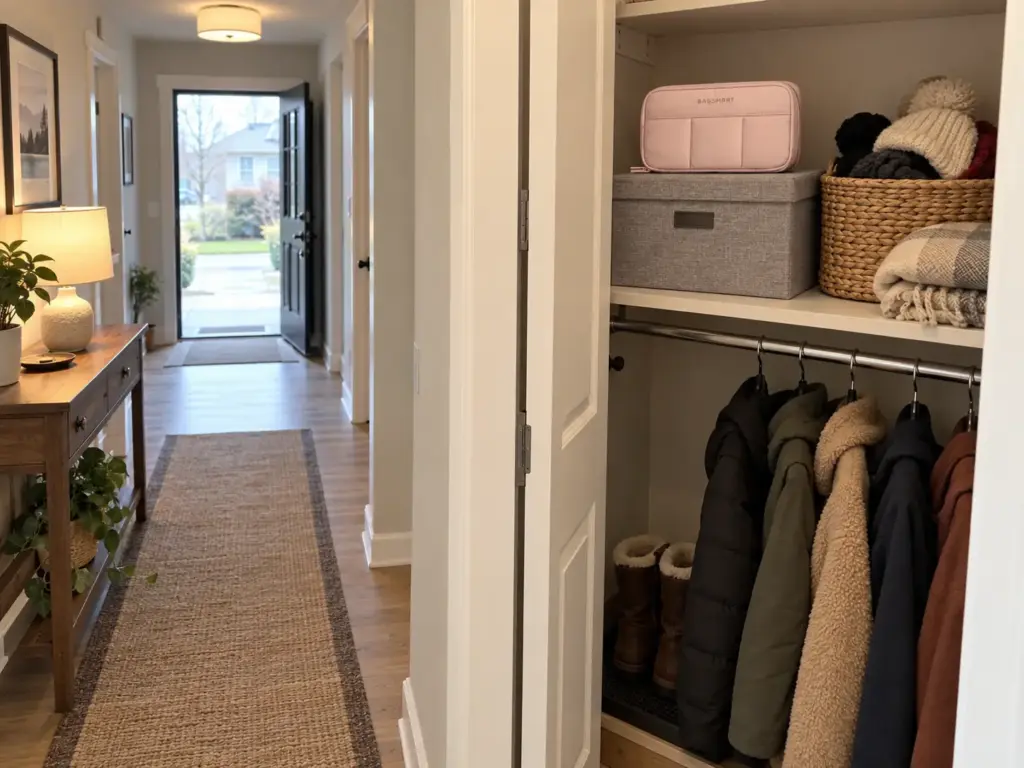
Give the kit one address
In a small space, a kit without a home ends up on the arm of the sofa, gets sat on, and slides down between the cushions with the mouse. Or it lives on the end of the dining table, which is just the original problem in a smaller footprint. The kit needs one address, and the address decides whether the clear happens.
Good candidates share one trait: you can reach the kit in a single movement. A closet shelf works if it is deeper than the pouch (lay the packed pouch on the shelf before you commit), and if you want to go further than a shelf, the ideas in how to give the kit a closet shelf or a full closet office carry over.
A rolling cart parked against a wall near the table works. So does a lidded storage box under the sofa, and under-bed storage works too if the box slides out easily. One MPU Talk poster folds the smallest card table available and puts it in a closet, which is the same idea at furniture scale, a folding desk that stows.
The rule for choosing between them: the kit lives where you already walk past daily, not where you have to move something first. A box under the bed sounds tidy until reaching it means shifting the laundry basket, and two moves before you even start is exactly the faff that makes “just leave it on the table” win. The hall closet you open for your coat each morning beats the bedroom one you avoid.
For renters, a pack-away office is easy territory. It is no-drill by definition and renter-friendly without trying: nothing gets mounted, so there is nothing to patch when you leave, and the address can be a box.
The pouch that makes it one unit
The pouch is what turns five loose items into one thing you carry. Start with any zip pouch or cable pouch you already own, as long as the keyboard, mouse, cords and ties fit with the zipper closed. A pouch that has to be forced shut is one you’ll stop using within the week.
If you want compartments so each piece has a slot, a purpose-made organizer helps.
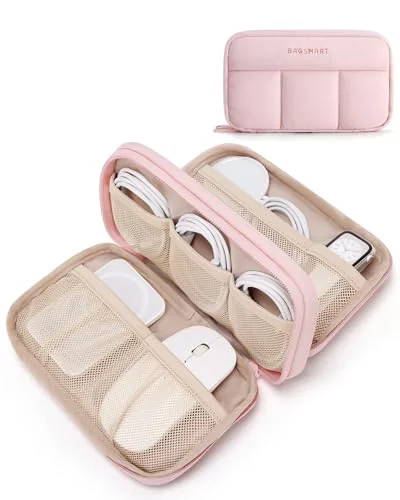
If your kit is mostly small pieces (pens, a notebook, earbuds, a phone stand), some desk organizers that can double as pouches do the job as well, and they sit neatly on a closet shelf between uses.
The set-up and clear routine, step by step
Real households already run this routine. In the same Mumsnet thread, one family sets up and takes down a monitor, a laptop riser, a keyboard and a mouse daily because otherwise they couldn’t fit the family at the table. Another poster works from half the table and packs it away for guests, saying it “only takes a few mins”. A two-minute setup and a two-minute clear is the realistic target.
Here is the arrival routine and the pack down, in the order that keeps them short:
- Take the pouch from its address and set it on your half of the table.
- Open the stand (or set down the book stack) and put the laptop on it.
- Place the keyboard and mouse in front, at elbow height.
- Run the one cord to the wall and plug the laptop charger into it.
- Work.
- At the end, reverse it: unplug at the wall, coil and tie each cord, fold the stand.
- Everything into the pouch, pouch back to its address.
The part that decides whether this survives is when the clear happens. Tie it to something that already happens in your house, such as someone starting to cook or leaving for the school pickup, not to a time on the clock you’ll negotiate with. The moment the routine loses is easy to picture: dinner is nearly ready, the laptop is still open, and packing up feels like more effort than eating around it.
If the clear is already triggered by the first pot going on the stove, that moment never comes. For more ways to make a small-space office reset quickly, the tote-and-reset options compare a few setups by footprint.
Pack the pouch in the same order you will unpack it: cords and ties at the bottom, mouse in the middle, keyboard on top. The first thing you reach for in the morning is the first thing out, and anything missing shows up as a gap before you close the zipper.
Three Budget Paths From Books to a Full Kit
If your cart already holds eight things by this point, this is where some of them come out. The cheaper paths do most of the job, and the order of spending is clear: stand, keyboard and mouse first, a second screen last.
| Path | What you use | What you give up |
|---|---|---|
| What you already own | Books or a shoebox, your keyboard and mouse, a spare power strip, a zip pouch, rubber bands | Bulk, and books that wander off |
| The middle tier | A stick-on stand, a compact keyboard and mouse chosen by connection type | Some wobble at tall settings |
| The splurge | A folding rigid stand, a three-device keyboard, a travel mouse, optional second screen | Very little, but the reset is no shorter |
Path one: what you already own
Books or a shoebox under the laptop, the keyboard and mouse you already have, a spare power strip, a zip pouch, rubber bands, and an iPad through Sidecar if you want a second screen. This path suits anyone under about an hour of computer work a day, and it works as a trial for heavier users: run it for two weeks and you will know which piece annoys you enough to replace.
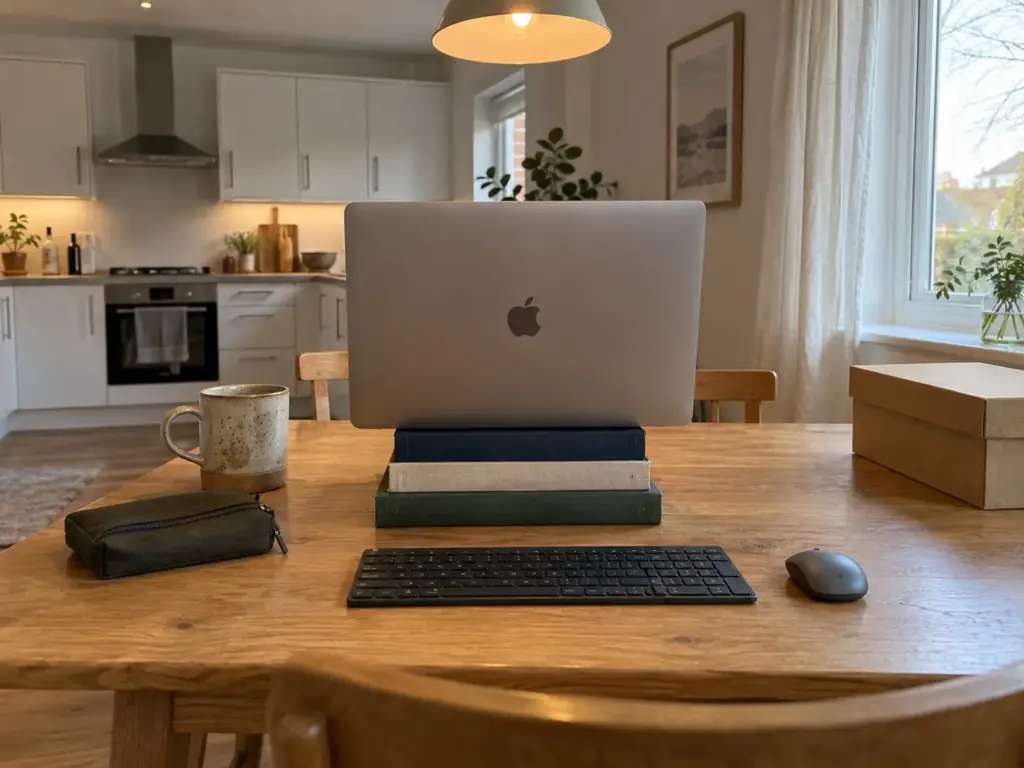
Path two: the middle tier
A stick-on stand that stays on the laptop, plus a compact keyboard and mouse picked mainly by how they connect (if Bluetooth has dropped out on you before, a set with a small USB receiver is the safer choice). This is the path for one to four hours a day, and nothing in it has to be found in the morning.
Path three: the splurge
The folding rigid stand, the keyboard that pairs with three devices, the compact travel mouse, and only here a second screen if your work needs one. What the extra money buys is real: a lightweight rigid stand and a kit that packs into one neat case.
Spending more feels like it should make the routine easier, and it doesn’t. The splurge kit takes the same couple of minutes to clear as the books-and-rubber-bands kit, because the routine decides the time, not the gear. For full days at the table, the splurge path is reasonable. So, though, is giving up on portable altogether and setting up a fixed corner, which the last section covers.
Why a Portable Setup Gets Abandoned by Month Three
A portable setup rarely fails on day one. It slips later, when the novelty is gone and the small costs of the routine start to outweigh leaving everything out.

Where portable setups break
By the third month the kit can end up in a drawer and the dining table is a desk again. Each way that happens has already come up: too many steps, a cord rerouted under the table daily, a second screen with its own power brick, a stick-on stand that stops gripping, a Bluetooth keyboard that has to be re-paired. Any one adds maybe a minute; two together turn the clear into a chore.
The mechanism is simple. A routine that costs more than a couple of minutes at the end of the day loses to “just leave it”, and “just leave it” is the one thing a shared dining table can’t absorb. Small desks fail the same way, which is why a small desk gets messy again after the first tidy week: the reset costs more than leaving it.
So when a kit starts getting skipped, look for the single item adding the most steps and cut it or simplify it. Usually it is a cable. Actually, more often it is the second screen, which brings its own cable and its own power with it, and dropping it gives back most of the lost time in one go.
Sharing the table without a fight
The friction is not only about time. One Mumsnet poster called it selfish to take over the dining table all week, and that kind of guilt builds quietly long before anyone says it out loud. The table belongs to everyone in the evening, and a kit that spreads across it says otherwise.
Picture it in your own house. Your partner sets the plates down at the edge of the keyboard. Your kid wants the table for homework and starts stacking worksheets on top of the mouse. Nobody is being unreasonable.
The kit simply has no boundary, so give it one: it stays on one half of the shared space, and the first plate going down is the signal to clear, not to argue.
If the cord to the wall runs across the path to the kitchen, that is a trip hazard with a hot dish in someone’s hands, so reroute it along the table leg or move the strip. And if you take video calls at the table, glance at what sits behind you before the first one starts.
Pick your half of the table by the outlet, not by the view. Sitting at the end closest to the wall keeps the one cord short and off the walkway, and it leaves the half nearest the kitchen free for whoever is cooking.
When to stop being portable
Portable has limits. If you are unpacking the kit more than a couple of times a day, or you work all day at a table the family also eats at, the routine is costing more than it saves. The Mumsnet reclaim-the-table thread follows exactly that arc: the poster who couldn’t stand the computer on the table moved to a corner desk, and later took back the spare room.
The next step is a fixed corner. If the floor space exists, a compact desk that stays up ends the daily set-up entirely. If the only free spot is in the bedroom, a bedroom corner that holds up past week three needs its own shutdown routine to keep work from following you to bed, the work-life separation a pack-away kit gives you for free. Either way, the kit you built isn’t wasted: the stand, keyboard and mouse move to the new spot as they are.
And for renters, the portable version stays the easiest to leave behind. Nothing mounted means nothing to patch when the lease ends.
Raise the Screen, Keep the Kit Small, Guard the Clear
Three things decide whether a pack-away office works at a shared table:
- The kit is five things and one address. Each extra item is another step at both ends of the day.
- The screen is the problem, not the table. A dining table is already desk height, so raise the screen first, then add the keyboard and mouse that let your wrists stay low.
- The routine decides whether it survives. A clear tied to something that already happens, like someone starting to cook, beats any piece of gear.
Three months from now, time the clear and compare it with the first week, and notice which single item you keep skipping; that one is either in the wrong place or doesn’t belong in the kit.
Tonight, with nothing new, put a stack of books under the laptop at the table and plug your keyboard and mouse in front of it. When the first plate is headed your way, pack it all away, and pay attention to the step you would most like to skip tomorrow. That is the one to fix first.
Frequently Asked Questions
01What are the must-haves for a portable home office setup?
The must-haves are something to lift the screen to eye level, a separate keyboard and mouse, one pouch and a single cord to the wall. A second screen, a docking station and extra chargers are optional, and each extra item adds a step to the daily clear.
02How do you set up a portable home office at the dining table?
Lift the laptop so the top of the screen sits at or below eye level, put the keyboard and mouse in front of it and run one cord to the wall. A dining table is already desk height, so only the screen needs fixing. Reverse the steps at day’s end.
03What is a good portable work desk for home use?
Often you need none, because a dining or kitchen table already sits at desk height and a stand or a stack of books does the rest. If the table is needed for meals all day, a folding desk or table that stows in a closet, or a compact fixed desk, is the next step.
04Do I need a second monitor for a portable setup?
Not for the lean kit, since Cornell lists an external monitor as one option for sustained laptop use, next to an external keyboard. A second screen adds a cable and a step, so try an iPad as a second screen, or no second screen, before buying one.
05How long should it take to set up and put away?
A couple of minutes each way is realistic, going by households that clear a shared table daily. If the clear takes noticeably longer, one item is usually the cause, most often a cord that needs rerouting or a second screen with its own power.
Disclaimer: ClutterlessNest is a participant in the Amazon Services LLC Associates Program. As an Amazon Associate we earn from qualifying purchases. This article may contain affiliate links — if you buy through them, we may earn a small commission at no extra cost to you. We only recommend products we have tested or genuinely believe in.