
You clear the Downloads folder on a Sunday, enjoy the empty window for a few days, and by next month it is full again with files you never decided to keep. Or you hover over delete on a folder you have not opened in four years and freeze, because you cannot say whether it holds the only copy of anything. Any plan to declutter digital files has to solve both, the pile that returns and the file that cannot come back. The order below follows the Library of Congress’s personal archiving advice (a second copy, a real inventory, a yearly check) and takes its folder habits from what people in productivity threads say failed them; the one-screen cap on Downloads and the desktop in our guide to decluttering by item type is the starting point, and this guide covers what comes after it.
Quick Answer
Folders refill because of default save spots and sync copies, so make a second copy before you delete anything, then work in this order.
- Copy everything to a second location and list where your files live.
- Sort by size and date, and cut the duplicates.
- Pick one master copy and remove the strays in a safe order.
- Set a few broad folders and names that sort themselves.
- Archive what you are unsure about, with a review date on the folder.
- Name one owner for every shared folder.
Why Digital Files Keep Piling Up After You Declutter Them
Picture the desktop you cleared in January. By March there are thirty new icons on it, and you never sat down and decided to put any of them there. That desktop clutter is the part worth understanding first, because a digital declutter that ignores what feeds the pile only resets the clock.
Default save locations do the filling
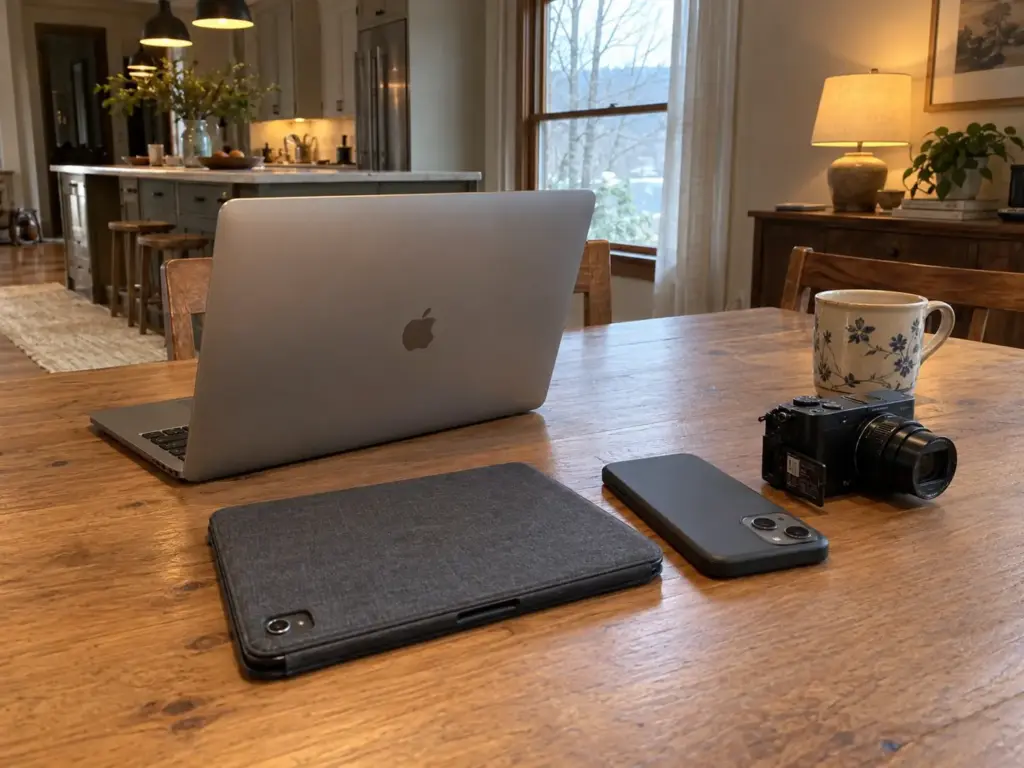
Browsers, chat apps and phones drop every file into one default place, and for most people that place is the Downloads folder or the desktop. A download lands there because that is where downloads have always landed, not because anyone chose it. Each save adds to a pile with no decision attached, which means willpower is the wrong tool. The intake is what needs a system.
The one-screen cap from the by-item guide stops the symptom, and it is worth keeping as a rule. But a ceiling does nothing about the faucet above it, so the rest of this guide goes after the faucet.
Sync copies multiply without a decision
Cloud sync makes the same thing happen a second way. When a file lives in the cloud folder, on the phone and on the laptop, one document becomes three entries in three file lists, and each of them looks like a separate thing to clear. Delete one without knowing how your sync is set up and you may remove the other two, or you may remove only the one in front of you and keep paying for the rest.
Neither outcome is a decision you meant to make. The safe order for removing copies gets its own section (step 4), because it is the part where files actually get lost.
What a one-time cleanup leaves untouched
An older r/productivity thread on digital life has the pattern in miniature. One person tried to copy another person’s folder system and it never clicked, because it was built on someone else’s logic.
Others described a saves queue with hundreds of items they would probably never read, and a watch-later queue that had grown to thousands of videos. None of those piles came from laziness. They came from a place where things go in and nothing is ever required to come out.
(Email and accounts are a separate pile with their own habits, and this guide leaves them alone. The scope here is files: documents, downloads, photos, and the copies that sync around.)
Make a Second Copy and Take Inventory Before You Delete Anything
The hesitation before pressing delete on an old folder is reasonable. The rule is backup before delete: a second copy turns “might I need this?” into “I can get it back”, and that change is what lets the next three steps move quickly.
The second copy comes first
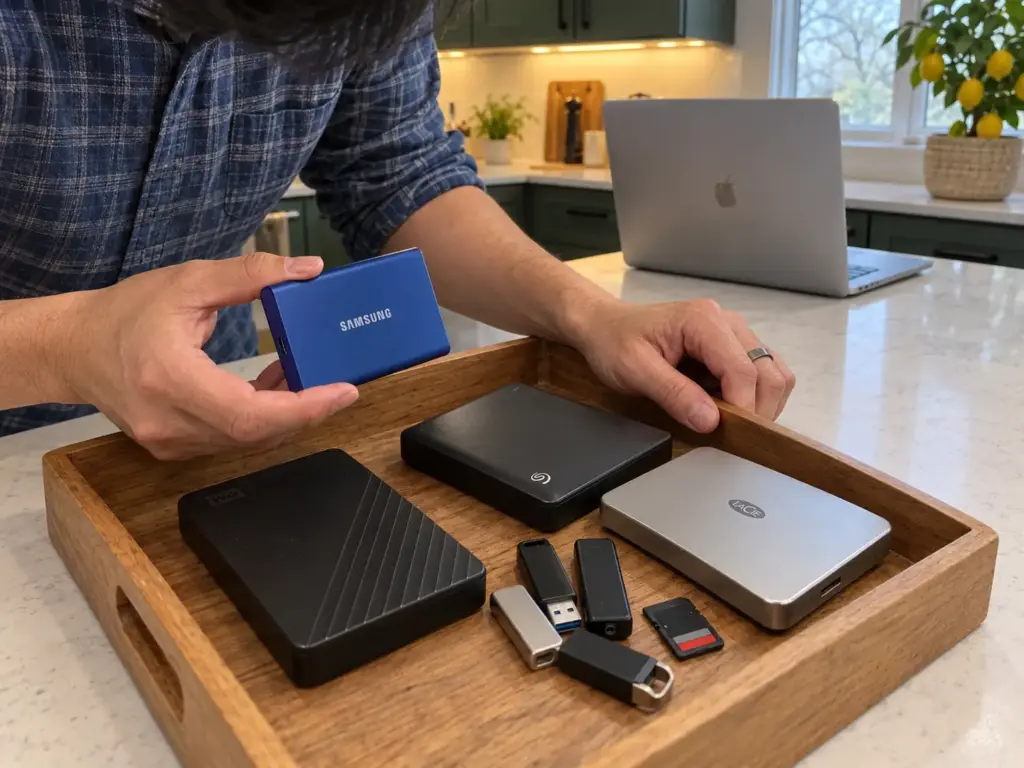
Start with what you already own. A second cloud storage account, an old external hard drive sitting in a drawer, or another computer in the house can each hold a copy of your main folders at no cost, and the best second copy is usually the one you do not have to buy. Copy first, sort later. Copying is the boring half of the job, but it is the half that makes every later delete reversible.
How many copies, and where? According to the Library of Congress’s personal archiving guidance, “Make at least two copies of your selected documents—more copies are better.” The same guidance says those copies should live in different places that are as far apart as is practical, and the plain-English reason is simple: a backup drive on the same desk shares the fate of the laptop next to it. Call the far-away copy an offsite backup if you like; it can be as simple as a cloud account or a drive kept at a relative’s house.
If there is no spare drive in the house and the photo library is large, a portable drive is the straightforward answer. The SAMSUNG T7 Portable SSD 1TB is a blue 1 TB portable SSD that connects over USB. Check the 1 TB against the total from your inventory below before deciding it is enough.
It also solves only half of the problem: it gives you the second copy but not the far-apart part, because a drive that lives in the same bag as the laptop is not a second location. It needs a home in another room, or another building if you can manage it.
Where your files actually live
Before the first delete, write one list. Guessing leaves out the drive from an old laptop, the phone’s camera roll and the cloud account you opened for one project and forgot. The Library of Congress guidance says to locate all digital files on computers and removable media, and a modern version of that sentence has more rows than it used to:
- the laptop or desktop, including Downloads, Documents and the desktop itself
- the phone and any tablets in the house
- every cloud account (the one you use daily and the ones you do not)
- old external drives, memory cards and USB sticks in drawers
The list does not need to be pretty. It needs to be complete, because you cannot decide which copy is the master (step 4) when you are missing half of the candidates.
Open one file from the backup
A backup you have never opened is a guess. Pick one file from the second copy, preferably an old one and not the file you just copied, and open it on a different device or a different account if you can. If it opens and reads correctly, the copy is real. If it does not, you found out while the original was still intact, which is the cheapest moment to find out.
The same guidance suggests checking your document files at least once a year to be sure you can still read them, and step 6 brings that date back as part of the archive.
Sort by Size and Date, Then Cut the Duplicates
Most people assume the problem is thousands of tiny files. It usually is not. A handful of video files, installers and old exports tend to hold most of the space, and you can find them in a few minutes without reading anything.
Sort by size and look at the top ten
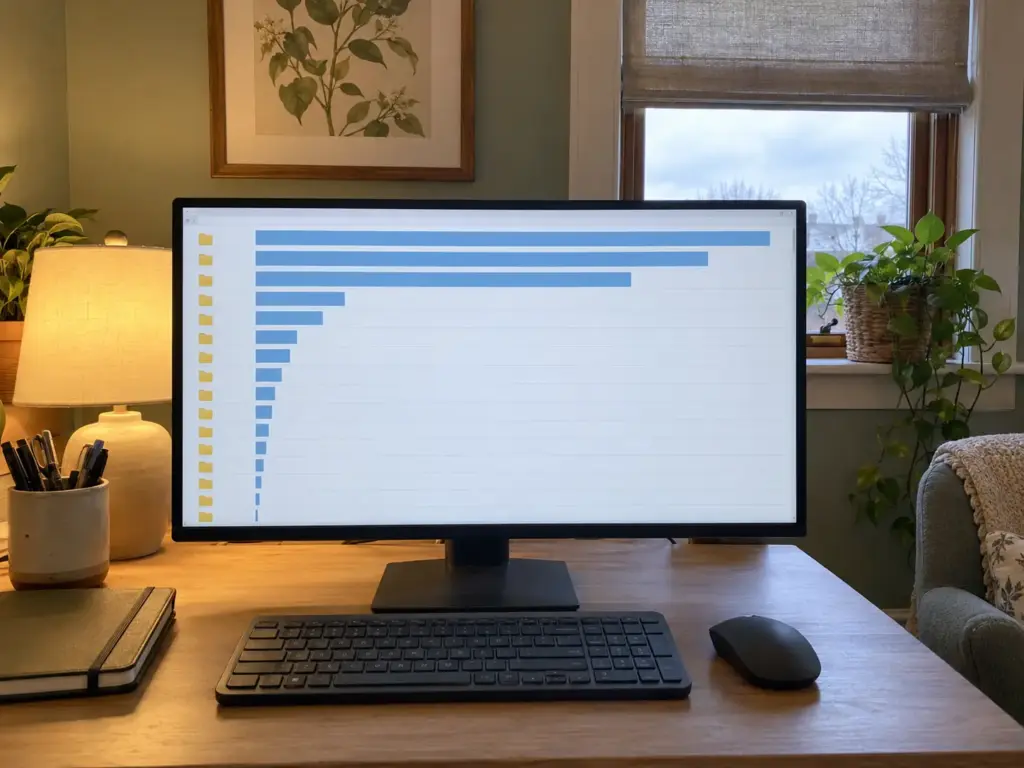
Use the file manager the computer already has. Open the folder, sort by file size with the largest first, and read the top ten names. Installers you have already run, screen recordings, a phone video you exported twice: anything you can identify without opening it and that exists in your second copy can go. This is the no-cost route for this step, and paid tools add little over a sorted list.
Sort by size once, cut the top ten, and stop. The next ten are worth far less per minute, and a session that ends while it still feels productive is the one you will repeat.
Sort by date and start with the oldest
Now sort the same folder by date modified, oldest first. Files untouched for years are the easiest to judge because the context that made them urgent is long gone.
For anyone who stalls on this part, the same thread offers a pacing trick from a friend: organize two files a day, then four. It sounds too small to matter, and it works because it keeps the session short enough to start. Anyone moving faster than that is free to do so (one commenter reported days of a hundred or more once they got going).
Duplicates: copies, versions and the photo library
Duplicate files come in three shapes. The first is the same file saved twice into two folders. The second is a set of files whose names carry the word “copy” or a version number, such as a résumé saved six times as it was revised.
The third is duplicate photos: the same picture sitting in the camera roll, the cloud library and an old messages backup. Sorting by name puts the first two shapes next to each other, and the photo duplicates get their own treatment in step 4.
Because the second copy exists, a wrong cut costs you nothing. That changes the feel of the whole step: you stop weighing each file and start sweeping.
One boundary. Paper is a different job, and scanning and shredding has its own order of work in the paperwork guide. If you are building the habit of capturing paper into files in the first place, how to go paperless at home covers where that goes wrong.
Keep One Source of Truth Across Cloud and Local Copies
The same résumé, or the same photo, turns up in four places, each slightly different, and nothing tells you which one is real. Fixing that means deciding in advance and then deleting in the right order.
Pick the one place that is the master
Choose the master: either the synced folder on the laptop or the cloud library, but not both. Write the decision down in one line, wherever you will see it again (the folder map in step 5 is a good home). The reason to write it down is not ceremony. It is that in six months you will not remember which copy you decided was the real one, and neither will anyone else in the house.
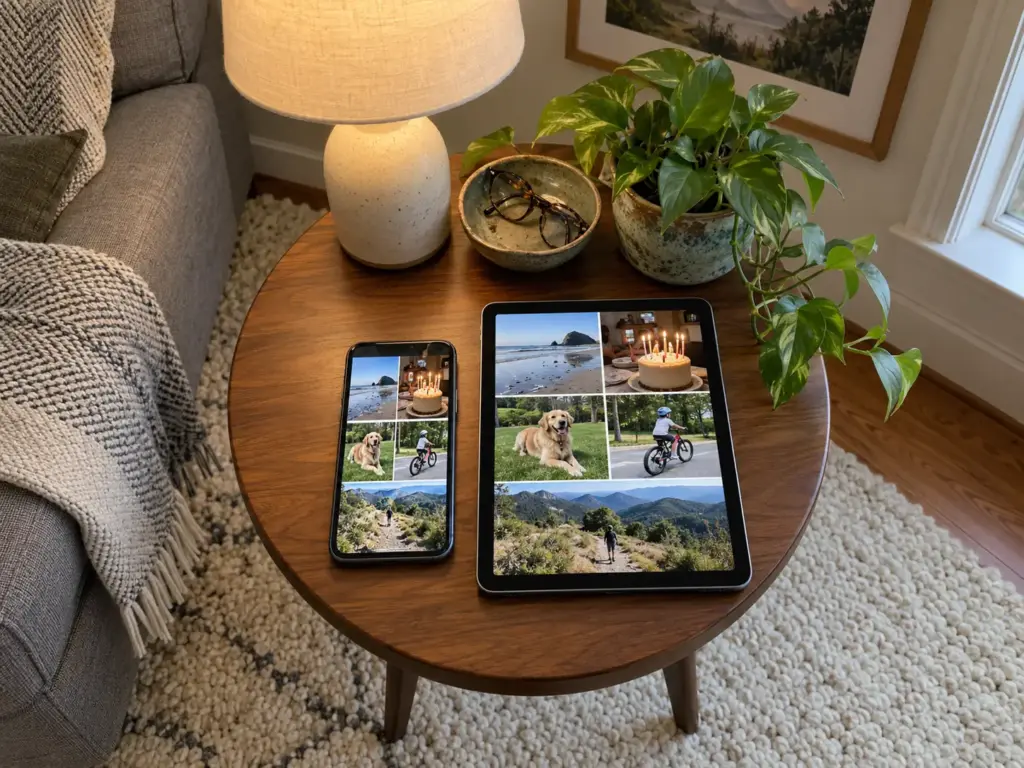
The master should be the place that is backed up, the place you open most often, and the place that every device can reach. For documents, that is usually the synced folder. For photos, it is usually one library, with the phone as the intake and not the archive.
Confirm the master first, then remove the others
The safe order has three moves, and the trash folder is the last of them. First, confirm that the master copy opens and is complete on a second device or in the web view of your cloud account. Second, once that is confirmed, remove the stray copies.
Third, empty trash last, so that every delete stays reversible until the very end. If you reverse the first two moves, you can delete the only complete copy while believing you removed a spare.
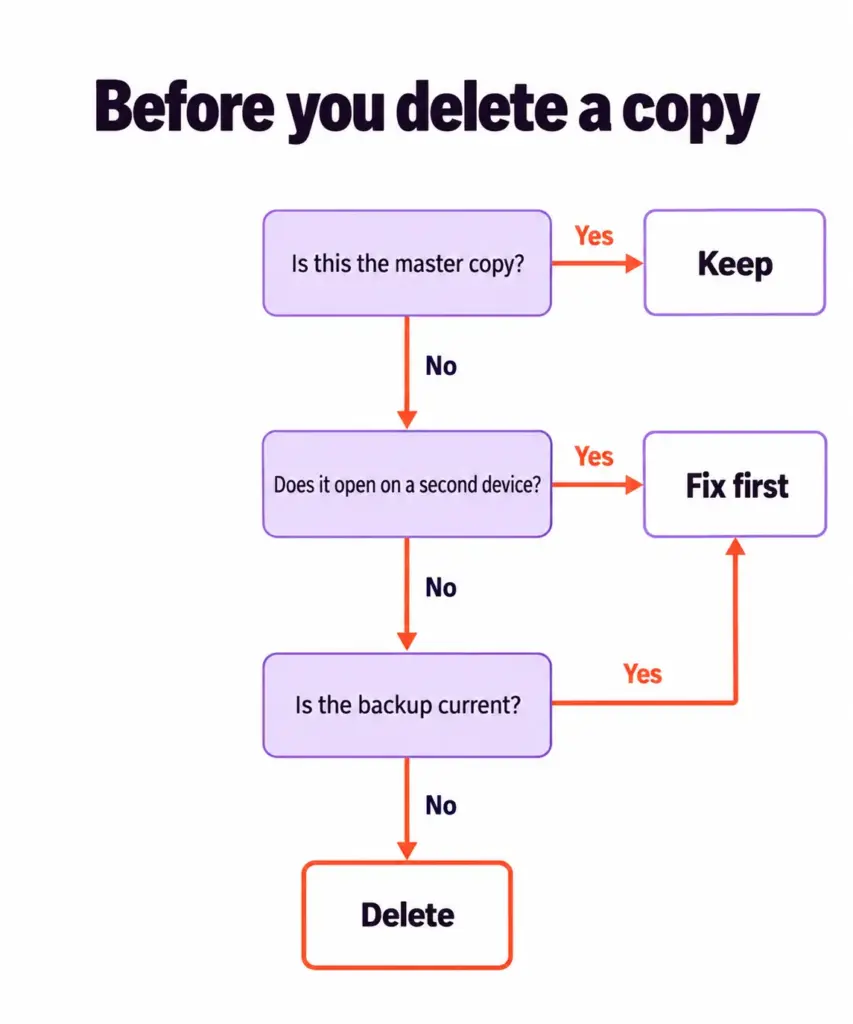
One caution applies to every synced folder. Deleting a file from a synced folder on one device may delete it everywhere, depending on how that service is set up. Before the first removal, find out what your service does, check whether it keeps a version history you can roll back, and test on a throwaway file. A thirty-second test beats an afternoon of recovery.
The phone’s camera roll and the cloud library
Photos are where this goes wrong most often, because three or four sources feed the same pile: the camera roll, the cloud library, screenshots and group chat photos. Pick one library as the master. Treat the phone’s camera roll as the intake, and set a rule for when the roll gets cleared: after the master is confirmed and not before. The one-copy photo rule from the by-item guide is the principle, and this is the safe sequence that goes with it.
Build Folders and File Names That Still Work in Three Months
The elaborate, color-coded system copied from a video usually lasts about a week. It fails because it was designed for someone else’s way of looking for things, and your hands do not know where anything is supposed to go.

A few broad folders, not a deep tree
The thread’s answer to this was “mega folders”: a few big, broad folders built on your own logic, with subfolders added later only where the contents force the question. For a laptop that holds work and personal files, that might be as simple as two top-level folders to begin with. A deep folder hierarchy adds a decision with every level, and when the decision is hard a tired person picks the Downloads folder instead. For a comparison of where different filing approaches give out, read where filing systems break before you commit to a structure.
The keep test from the by-item guide still applies: folders only need to be good enough that the file turns up when you look for it. (Some people lean on search instead of folders entirely, which works until the file names stop being descriptive.) Run the three-month test on whatever you build: would you still file a download into this folder on a tired evening in March? If the honest answer is no, the structure is too fussy.
Names that sort themselves
Pick one file naming convention and keep it short: put the date first, in year-month-day order, and follow it with a plain word for what the file is. Date-prefixed names order the list without any help from you, and a file called 2026-03-14_lease-renewal is findable by someone who has never seen your system. The Library of Congress guidance asks for descriptive names for individual documents, and a date followed by a plain description is the shortest way to meet it.
Rename as you save from now on, and leave the old files alone. Renaming ten thousand existing files is a project that quietly never ends, while renaming each new one takes seconds.
The one-page map of your folders
The same guidance suggests writing a brief description of the directory structure. In plain terms, that means one page: the folders, what belongs in each, and which copy is the master.
Its job is to let a future you, or a partner, find things without the old system in your head. It also tells you when the structure has drifted, because a folder you cannot describe in a line has stopped meaning anything. If the paper side of your file management needs the same treatment, our rules for file organization use the same logic.
Give the Archive a Review Date So It Does Not Become the New Pile
Everyone has the folder called Archive or Old. It starts as a tidy place for things you are not sure about and grows to the size of the original mess, because nothing ever leaves it.
What an archive is for
An archive with no review date is the storage box nobody opens. It is the same storage-box trap that sinks physical decluttering: “maybe” feels like a decision, and nothing forces you to make the real one. The cure is a dated archive: give the archive folder one rule at the top, stating what belongs there, and a date when it will be looked at again. Put the date in the folder name, so it is visible every time you open the folder.
On the review date, the questions are short. Did you open anything in here since the last review? Does it still open? Files that pass both stay, and the rest go.
The yearly check, and the five-year re-copy
The Library of Congress guidance adds two dates that most people skip. Check your document files at least once a year to make sure they still open, and make new media copies every five years or when needed to avoid data loss. The plain-English version: the drive ages too, and a backup you never open is a guess. Put both dates on a calendar the day you set up the archive, and the second copy from step 2 gets checked on the same day.
Set the yearly check and the five-year re-copy as repeating calendar events with the file path written in the event note. A reminder that says only “check backup” gets dismissed; one that says where to look gets done.
A fixed slot that keeps the whole system running
The piles refill at the intake: Downloads, the desktop and the camera roll. So the maintenance cadence should be tied to those three places, not to the whole system. Pick a short fixed slot for a monthly review, put it on the calendar, and spend it only on the intake folders. A short slot repeated beats a long session you dread, and it works because it matches the speed at which things pile up.
Pair the slot with a simple rule for the folders that have a cap: when something new goes in, something old leaves. That is one in, one out applied to files, and a rule like that fades without a reminder, which is why the monthly slot exists. It does the remembering for you.
Handle Shared Household Files and Use the Free Route
The family photo library gets fed by three people’s phones, and a partner saves everything into one shared family folder. You cannot delete what is not yours, and you cannot clean a folder whose owner is not in the room.

Whose library is it, anyway
Shared files change the question from “do I need this?” to “whose is this?” Picture the household photo library with a parent, a partner and a teenager all uploading to it, kids devices included. Cleaning it without agreement means someone’s photos disappear, or someone’s duplicates stay.
Before any cleanup of a shared library, decide whose account it lives in. If it sits in a child’s account or a shared login, moving it is a bigger decision than deleting from it.
(Living with a partner who keeps everything is the same problem in physical form, and that guide covers the negotiation.)
One owner per folder decides what goes
The rule a household needs is small: one named owner for every shared folder. Everyone can add; only the owner deletes, and the owner clears the folder on the review date from step 6. This turns an argument into a calendar entry.
It also gives the others a way to say “that one can go” without touching the folder themselves. Write the owner’s name on the one-page folder map from step 5, where everyone can see it.
The free built-in route, step by step
None of this needs a subscription. The whole sequence can be run with free built-in tools you already own:
- Second copy on a drive or account you already have (step 2).
- The built-in file manager for sorting by size and date, and for search (step 3).
- One synced folder as the master (step 4).
- The folder map as a one-page note (step 5).
- A calendar reminder as the review date (step 6).
Passwords are a boundary, not a file topic, but the same thread had a no-cost answer: one commenter pointed out that iCloud includes a built-in password manager at no cost, and another named Bitwarden for people who need to cross platforms. No software here earns a link from us.
The free route has an honest limit. A second copy on an account you already own is usually smaller or slower than a purpose-bought drive, and once the library outgrows the free space, the route stops being enough. That is the point to buy something, and not before.
Copy Before You Cut, Then Check Back in Three Months
Decluttering that sticks comes down to three things. The second copy comes before the first delete, so every cut is reversible. The folders refill because of where files land, so the intake gets the system and not your willpower. And an archive needs a date, or it becomes the next pile.
In three months, open one file from the backup and look at the archive’s review date. If either one surprises you, the system is not holding yet, and the fix is a smaller version of the same steps, not a new system.
Today, copy your Downloads folder to a drive or account you already own, then look at what is in it. Open one file from the copy. That one move quietly ends the fear of deleting the wrong thing, and it is the first step of decluttering digital files in the right order.
Frequently Asked Questions
01How can I clear up my digital clutter?
Back up first, then sort by size and date, keep one master copy, use a few broad folders, and put a review date on the archive. The second copy comes before any delete, so every cut can be undone.
02What is the best way to organize digital files?
Use a few broad folders, names that start with the date in year-month-day order, and a one-page map of the layout. This keeps the structure simple enough to use on a tired evening, and the map lets someone else find things.
03How to organize 30 years of digital photos?
Make a second copy first, then choose one library as the master and sort by year, then by event. Check old drives and cards for readability, and re-copy to new media every five years, as the Library of Congress advises.
04How do I declutter digital files without losing any?
Copy everything to a second location and open one file from that copy before deleting anything. Then confirm your master copy, remove the strays, and empty the trash last so every delete stays reversible.
Disclaimer: ClutterlessNest is a participant in the Amazon Services LLC Associates Program. As an Amazon Associate we earn from qualifying purchases. This article may contain affiliate links — if you buy through them, we may earn a small commission at no extra cost to you. We only recommend products we have tested or genuinely believe in.